PlutoF Platform: eDNA data management and mobilisation - Tutorial
Section outline
-

PlutoF is a web-based biodiversity platform that manages data across disciplines like ecology, taxonomy, and genetics. It is recommended by the BMD project as the reference platform for the management, annotation, and publication of environmental DNA datasets to major global repositories, first and foremost Global Biodiversity Information Facility (GBIF) , European Nucleotide Archive (ENA), and DataCite.
It supports the full data lifecycle, from collection to archiving, in line with FAIR principles. By adhering to key standards like Darwin Core (DwC), the Genomic Standard Consortium’s Minimum Information about any (x) Sequence (GSC MIxS), the Global Genome Biodiversity Network (GGBN), and standard compilations like the DNA derived data extension to DwC.
This resource recalls the "eDNA data management and mobilisation - user tutorial" uploaded on the PlutoF website - section Documentation. It describes the PlutoF workflow for eDNA data management and mobilisation, including project planning, eDNA sample collection, metadata capture, quality control, and the publication of data to ENA and GBIF. Its main purpose is to enhance existing information by incorporating user-friendly multimedia content.
-
ASV – Amplicon Sequence Variant
DOI – Digital Object Identifier
DwCA – Darwin Core Archive
ENA – European Nucleotide Archive
GBIF – Global Biodiversity Information Facility
HTS – High-Throughput Sequencing
INSDC – International Nucleotide Sequence Database Collaboration
LIMS – Laboratory Information Management System
OTU – Operational Taxonomic Unit
SH – Species Hypothesis
-
This resource is structured into 13 step-by-step phases, building upon the official documentation freely available on the PlutoF website:
- Creating a PlutoF account
- Creating a project
- Assigning users and access rights
- Assigning QR identifier blocks
- Registering samples in the field using the PlutoF GO app
- Managing sample data on the PlutoF workbench
- Uploading sample records to ENA/Biosamples
- Managing molecular lab experiments
- Uploading raw sequence data
- Sequence data processing and analysis
- Uploading OTU/ASV representative sequences to PlutoF
- Assigning UNITE SH identifiers
- Publishing project dataset in GBIF
-
Go to app.plutof.ut.ee/register to create your account and compile the form (Fig.1a). Remember to accept the PlutoF Terms and Conditions to complete your registration and log in!
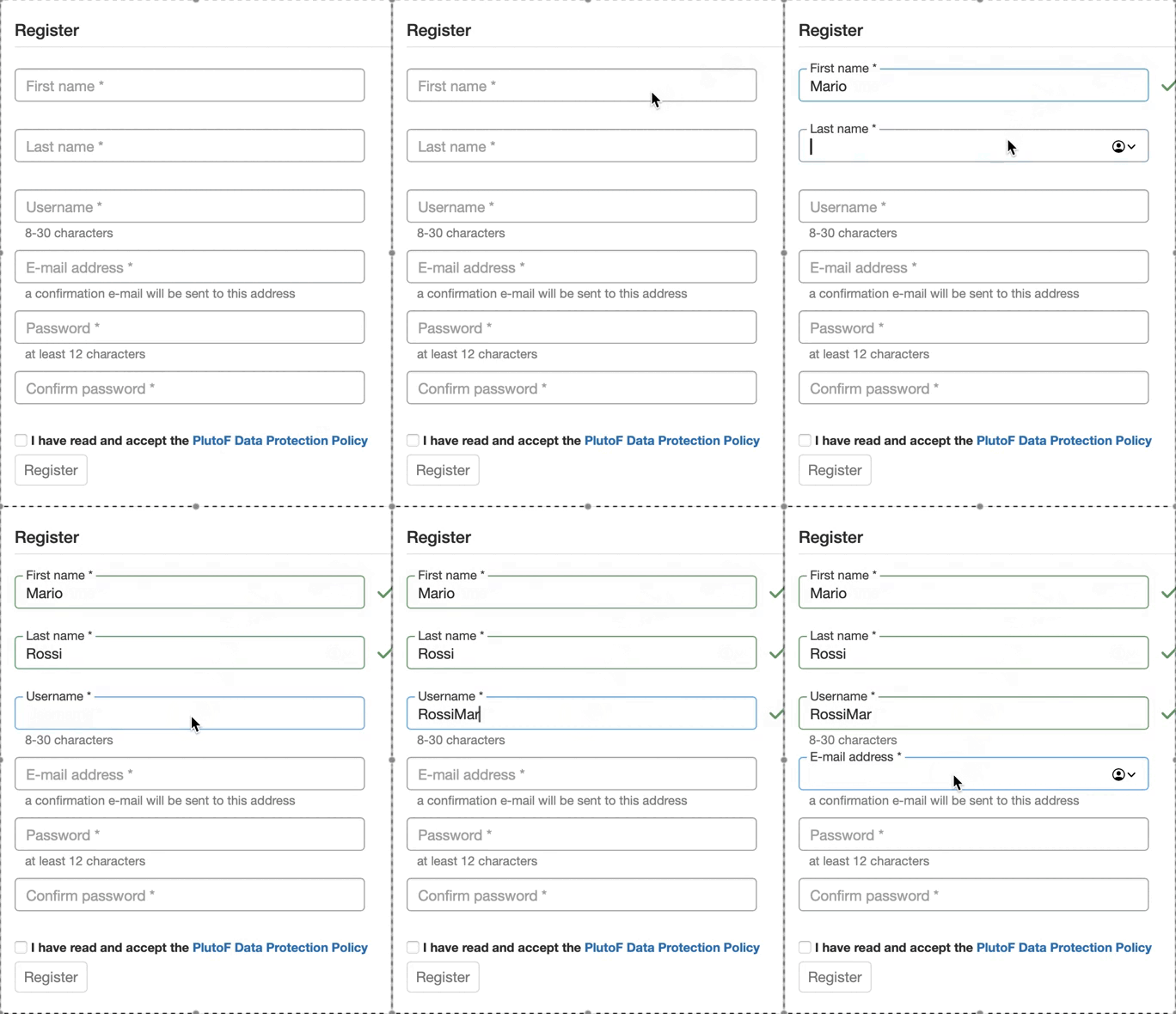
Figure 1a. Registration form for the PlutoF platform.
Once you submit the form, we'll send a confirmation email with an activation code (Fig.1b) to your inbox.
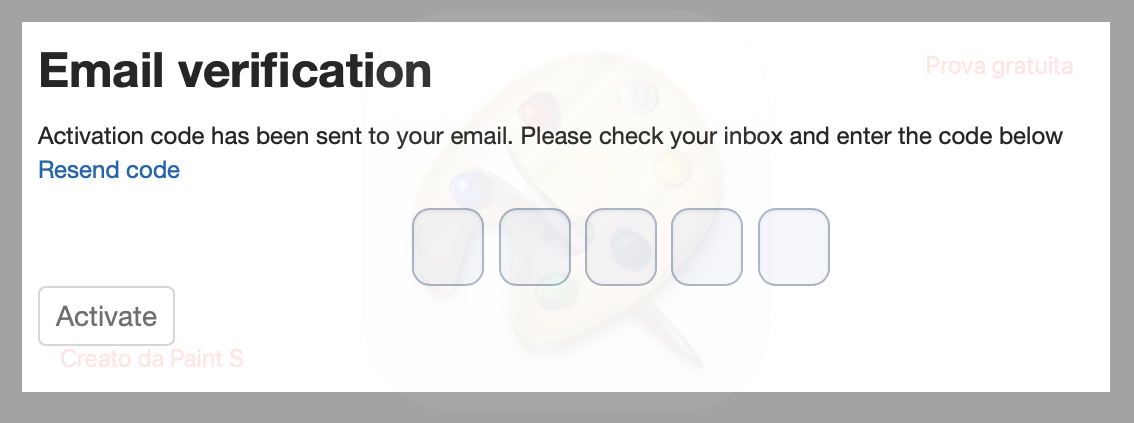
Figure 1b. Copy and paste the five-digit code to complete your account activation.
NOTE: If you do not receive the confirmation email, please check your Spam folder.
The same PlutoF account should be used to log in to the PlutoF GO app.
Password recovery: If you forget your password, you can recover it at https://app.plutof.ut.ee/recover-password.
What is PlutoF GO?
PlutoF GO is a mobile tool designed for collecting biodiversity data right out in the field. It lets you gather information offline, automatically fills in your GPS location and current date/time, and even allows you to scan QR codes directly from sample labels (see section 4). When you're ready, you can upload your saved data to the PlutoF workbench immediately or hold onto it to edit later or wait for a better internet connection.
To log in to the PlutoF GO app, simply use your existing PlutoF account credentials. You don't need to create a new profile, just log in with the same username and password you use for the web platform.
Find more information here.

-
Projects in PlutoF make it easy to organise and manage your data.
Once in the Home page, you can set up sampling areas, manage team roles and access rights, and get your data ready to publish! Keep your projects private, make them public, or share them directly with collaborators.
Getting started is easy: Go to Main Menu → Projects → New (Fig.2)
Figure 2. Creating a new project.
-
Every project has a managing team (Fig. 3a,b) where you can assign team members one of three roles:
• Regular User: Can add and edit their own data;
• Moderator: Can add data and edit all data within the project;
• Owner: Has full control, can edit all data, add new moderators, or delete the project and its contents.
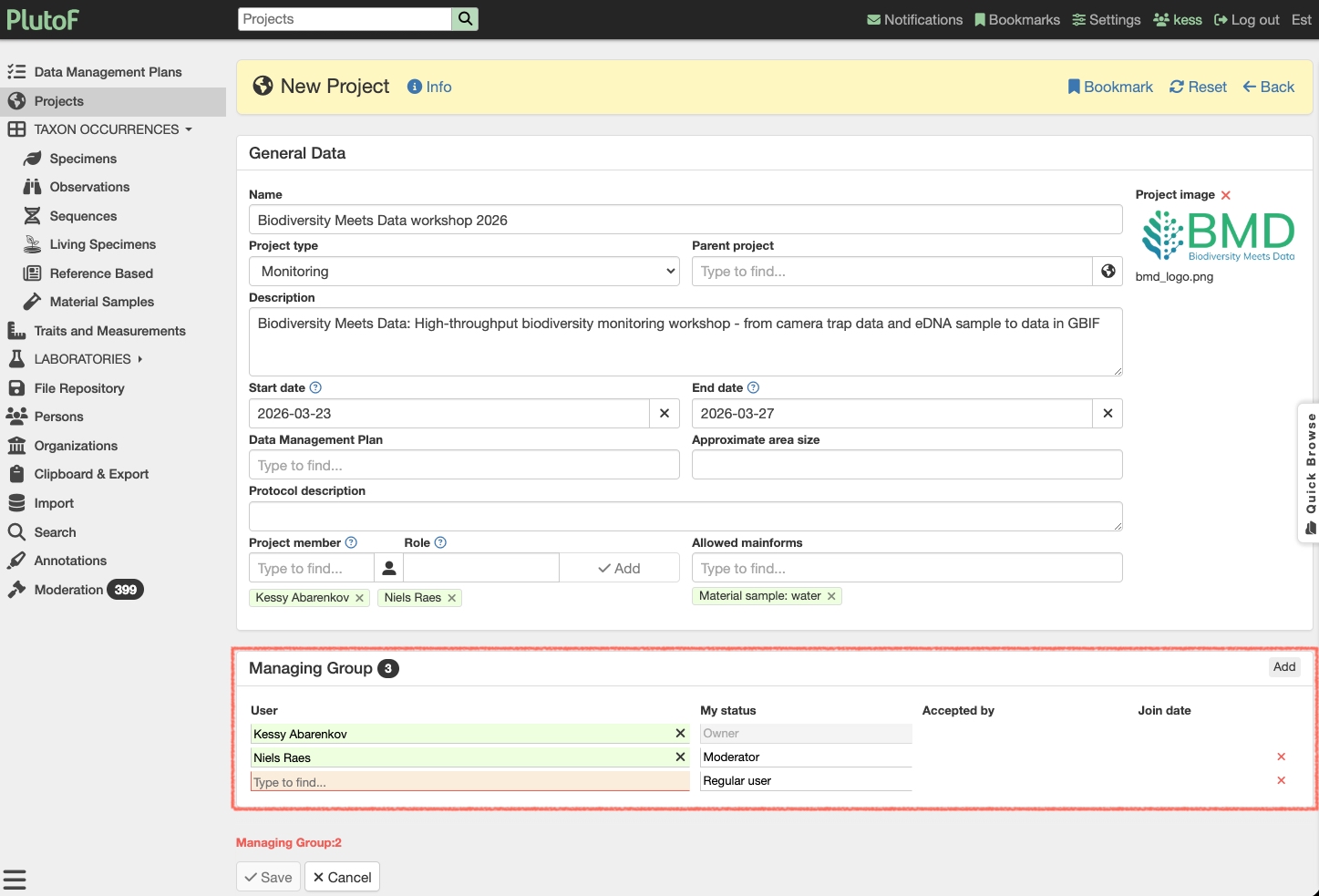
Figure 3a. Adding members to your project.
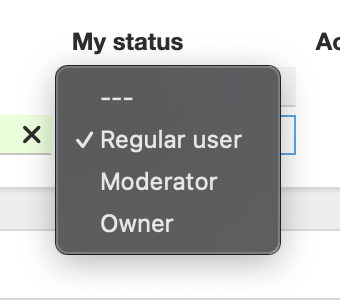
Figure 3b. Setting up members role.
-
You can create custom sample IDs and reserve specific identifier blocks for your team members. Download and print these IDs as identifier QR codes to quickly register samples in the field using the PlutoF GO app.
STEP 1. Create your identifier block (Fig. 4)
1. Define your custom ID format.
2. Assign access reserving the ID block for a specific team member, or check the box to share it with all project members.Figure 4. Creating a custom identifier block and set access rights for your team.
How permissions work:
Assigned to a user: Only that person can upload data using those IDs. Shared with everyone: Anyone with write access to the project can use them. Please note that All IDs must be unique within the project, duplicates aren't allowed.
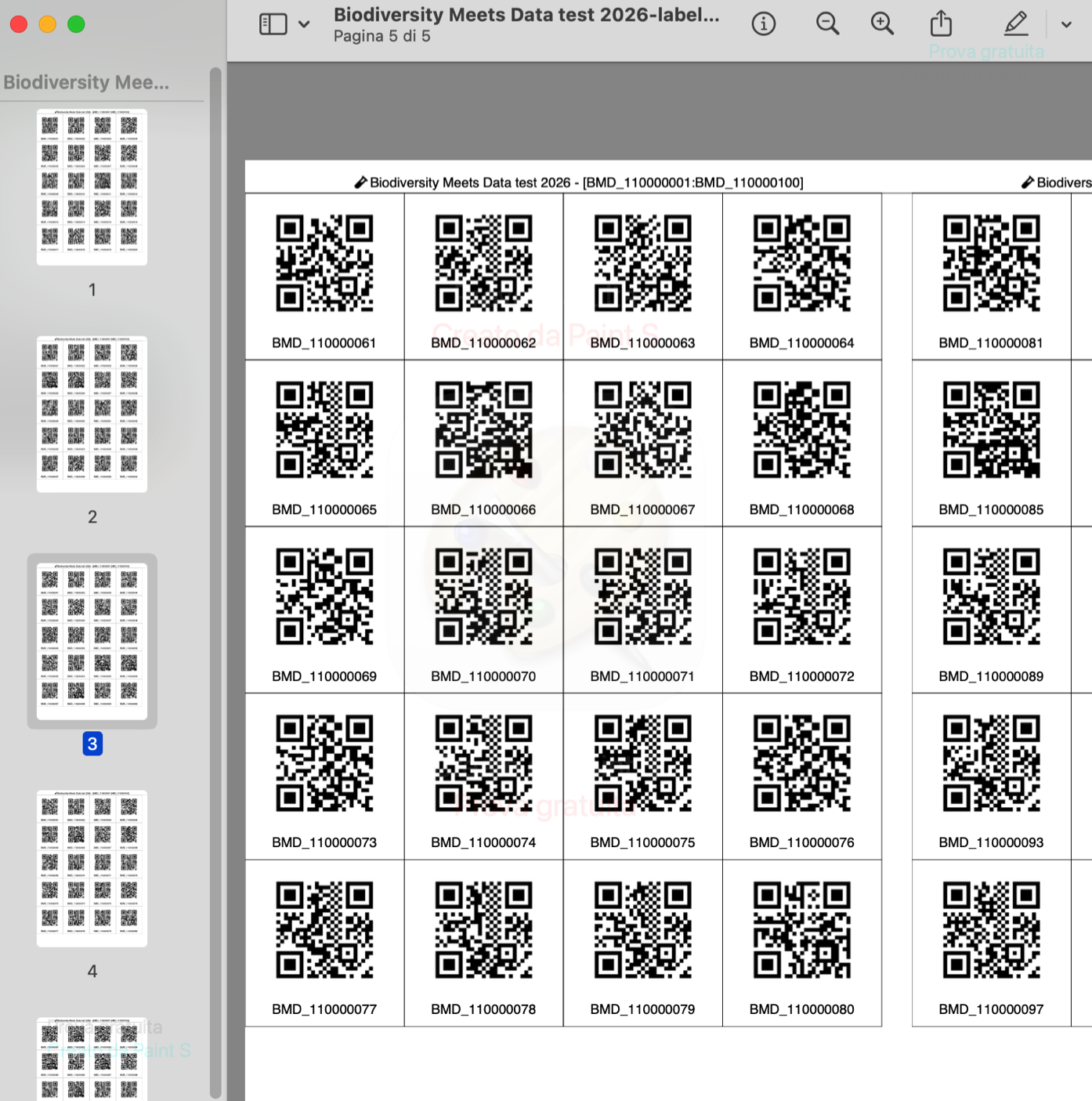
STEP 2. Print and use your QR labels (Fig. 5-6a,b)
1. Click Print labels in the Reserved identifier blocks panel, .
2. Choose the format and print the QR codes onto sticker labels and attach them to your sample bags, tubes, or envelopes.
3. Scan the stickers in the field with the PlutoF GO app to instantly record sampling data.
Figure 5. Downloading QR codes labels.
a)
 b)
b)
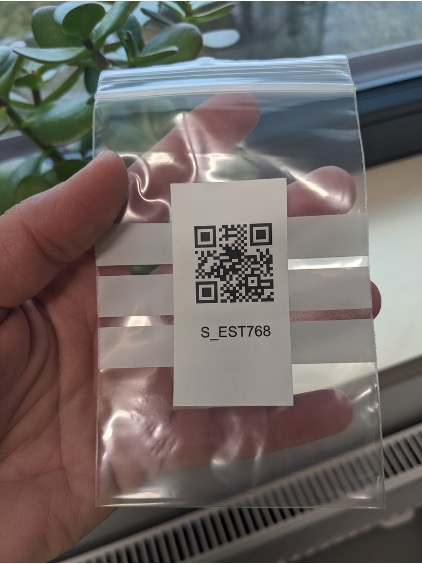
Figure 6a. Example of 100 print-ready QR code labels; 6b. Sample bag with a QR code sticker, ready for field scanning. Photo credit: Inga Hiiesalu-Vahter.
-
Download the PlutoF GO app from your device's app store; it's available on both the Google Play Store (for Android) and the App Store (for iOS). To log in, simply use your existing PlutoF username and password! There’s no need to create a new account, just sign in with the same credentials you use on the web!
To create a new sample record in the PlutoF GO app (Fig. 7a,b):
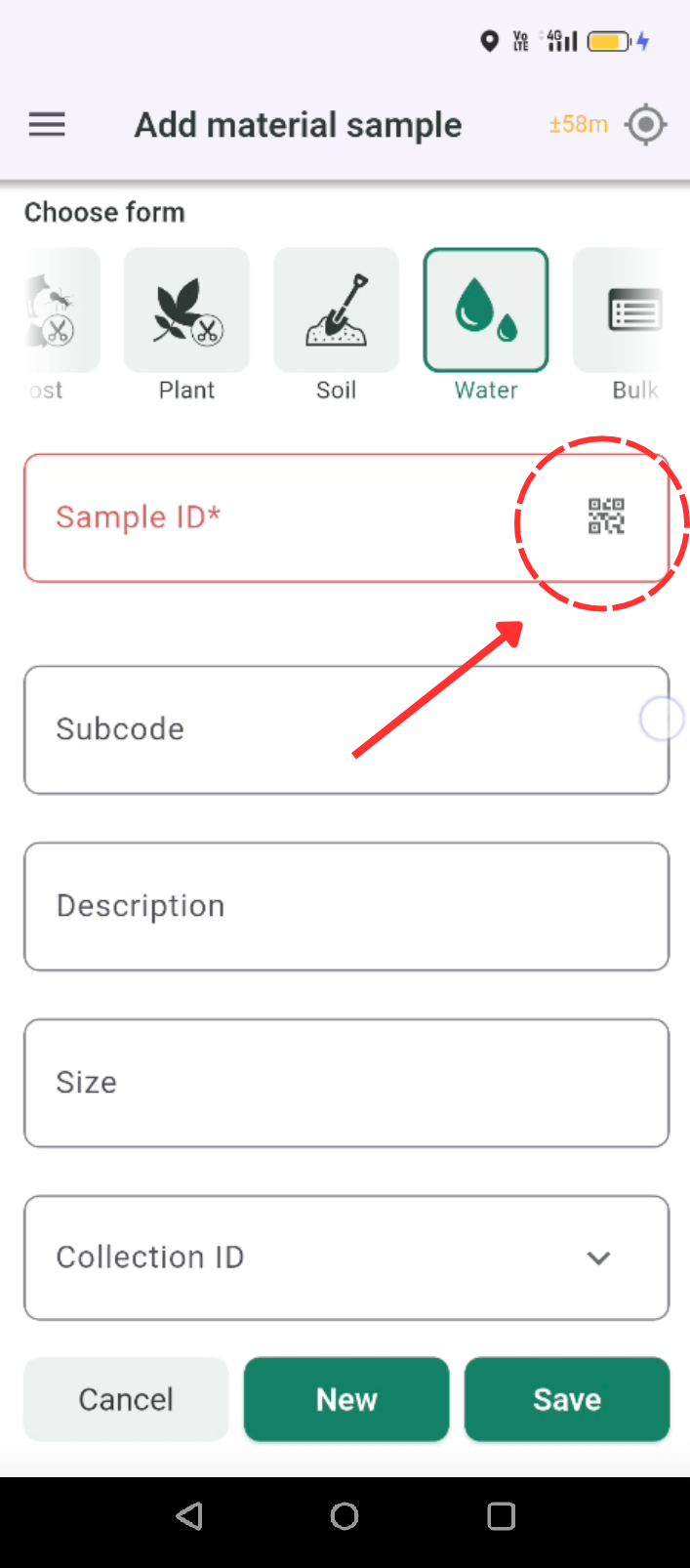
1. Tap "Add material sample" button and choose the correct input form, "Water" in our example (Fig. 7a);
2. Scan a sample identifier by tapping the QR icon in the Sample ID field (Fig. 7b);
3. Fill out required fields and Save. Keep an eye out for fields highlighted in red, these are mandatory;
4. Upload Your Data, whenever you're ready to sync your records to the PlutoF workbench, simply tap the Upload icon
 in the top header.
Note: Before adding any new samples, make sure to select your project. You can choose one using the search field while entering a sample, or set a Default project beforehand in the app Settings.
a)b)Figure 7a. Creating a new sample record in the PlutoF GO app; 7b. Sample identifiers can be scanned by clicking the QR icon in the Sample ID field.
-
PlutoF GO app →→→→ PlutoF workbench
Once you’ve uploaded data from the PlutoF GO app or imported it via CSV files, you can easily validate, organise, and edit it directly on the PlutoF workbench. Users can update individual records or use the bulk update functionality in the Clipboard to modify multiple records simultaneously.
You can access all project data directly from the Project View (Figure 8) where you can quickly search for related material samples or add records to your Clipboard.
Once in the Clipboard, you can:
• View your records on an interactive map;
• Export data in multiple formats;
• Perform bulk edits;
• Send records for analysis.
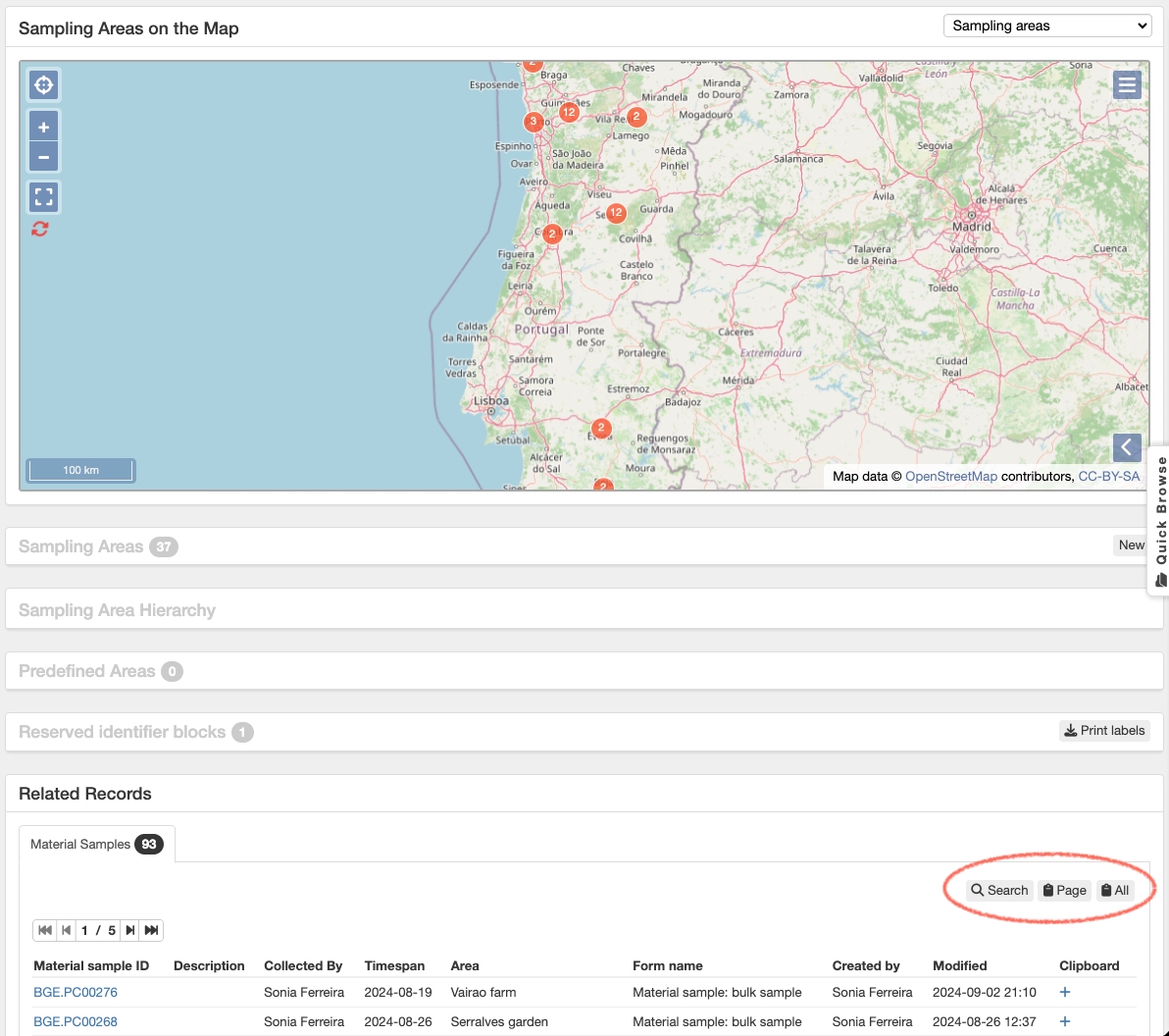
Figure 8. Project view featuring quick shortcuts for searching project data and accessing Clipboard functionalities.
-
Through the Publishing module in PlutoF, you can easily submit your sample records directly to both ENA and BioSamples databases. PlutoF acts as a bridge to ENA using its automated submission service, ensuring that your official ENA identifiers are returned and saved right alongside your original PlutoF records.
Good to know before you start:
• All samples inside your selected study will be published together as a single submission batch.
• You can re-publish your dataset at any time in the future to update sample information in ENA.
• At this stage, your samples are created as independent records. They will automatically link to a BioProject when you connect your raw sequence data in Step 8.
Steps to publish:
1. Log in to PlutoF and navigate to:
Main Menu → Laboratories → Publishing Lab → ENA Datasets → New
(Or go directly to: app.plutof.ut.ee/publishing/ena/add, Fig. 9)
2. Select your project name from the drop-down list (Note: You must have Project Moderator permissions);
3. Complete required fields filling in any missing mandatory information required by ENA;
4. Save the progress of your submission draft;
5. Submit your dataset to ENA by clicking Publish once an administrator approves your draft.
Upon successful publication, your material samples will automatically receive official ENA and BioSamples IDs.
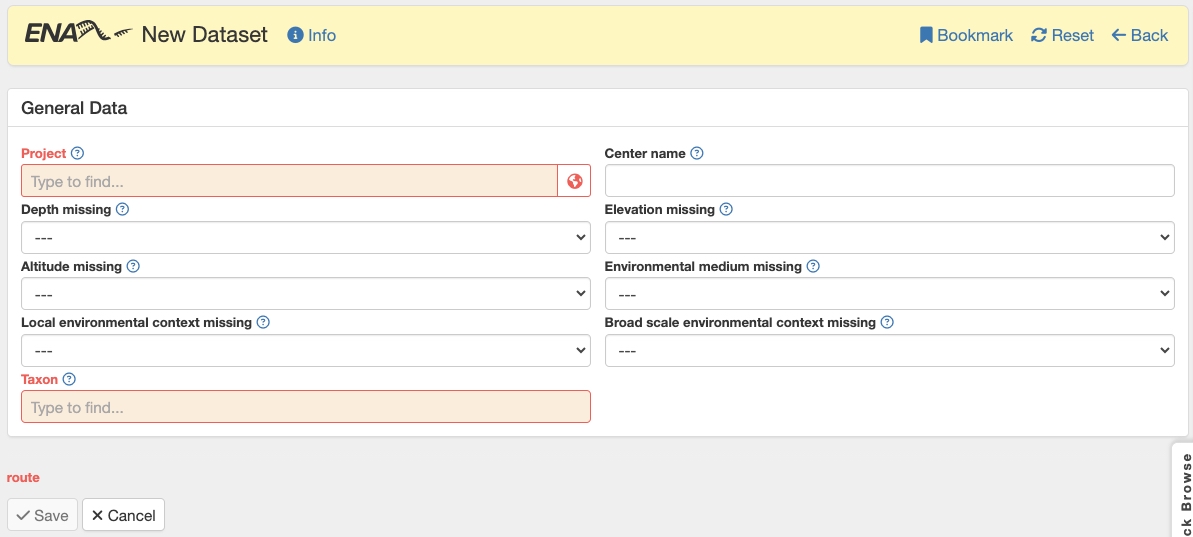
Figure 9. Creating a new dataset for publishing to ENA.
-
The Molecular Laboratory module in PlutoF acts as your all-in-one Laboratory Information Management System (LIMS) where you can easily track and organise your lab workflows, including DNA extraction, PCR, and Library prep. & DNA sequencing experiments carried out on the material samples registered in PlutoF during step 4.
Note: Detailed step-by-step guides for individual lab experiments are outside the scope of this tutorial, but PlutoF gives you a flexible workspace to manage them as your project grows!
-
Using the ENA Submission Portal, users are required to create a project and upload raw sequence data directly to ENA. During the submission process, sample records submitted to ENA in step 6 of this workflow can be used and linked to the raw sequence files.
Note: Uploading raw sequence data to ENA is not covered in this specific tutorial. However, a detailed tutorial was prepared as part of the Bioscan Europe project (Uploading raw sequence data to ENA). Please also refer to the ENA tutorial (How to Submit Raw Reads) for a comprehensive overview of the process.
-
Before you can work with your data in PlutoF, you need to process your raw sequence files to generate Amplicon Sequence Variants (ASVs) or Operational Taxonomic Units (OTUs).
Please Note: Processing raw sequence data happens outside of the PlutoF platform and is not covered directly in this tutorial.
To help you get started with your bioinformatic workflow, here are three popular and reliable tools you can use:
• PipeCraft2 - A user-friendly, cross-platform graphical interface (GUI) tool designed for metabarcoding data analyses. It offers ready-to-run pipelines as well as individual processing steps. Tip: Dedicated workflows developed through the Biodiversity Genomics Europe project can be explored at the Bioscanflow Documentation. These bioinformatic workflows have also been implemented in PipeCraft2.
• QIIME 2 - A comprehensive, widely-used suite of plugins and bioinformatics methods. It is fantastic for performing deep microbiome analyses complete with interactive visualisations and robust statistical tools.
• DADA2- A fast and powerful software package specifically designed to accurately model amplicon errors and infer exact ASVs straight from your raw sequencing data. Choose the tool that best fits your experience level and project requirements to generate your representative sequences, and you'll be ready to bring them into PlutoF!
-
You can easily upload your OTU representative sequences and ASVs into PlutoF using the built-in import module. Just follow these simple steps to prepare and import your data:
STEP 1. Download the Import Template
1. Go to the Main menu and select Import → Generate template.
2. Configure your template settings using the following options (as shown in Figure 10):
Model: Select “Sequence”
Form name: Select “Sequence: HTS representative”
3. Select your data fields in the list to be imported.
4. Click the "Download file" button to save the template file to your computer.
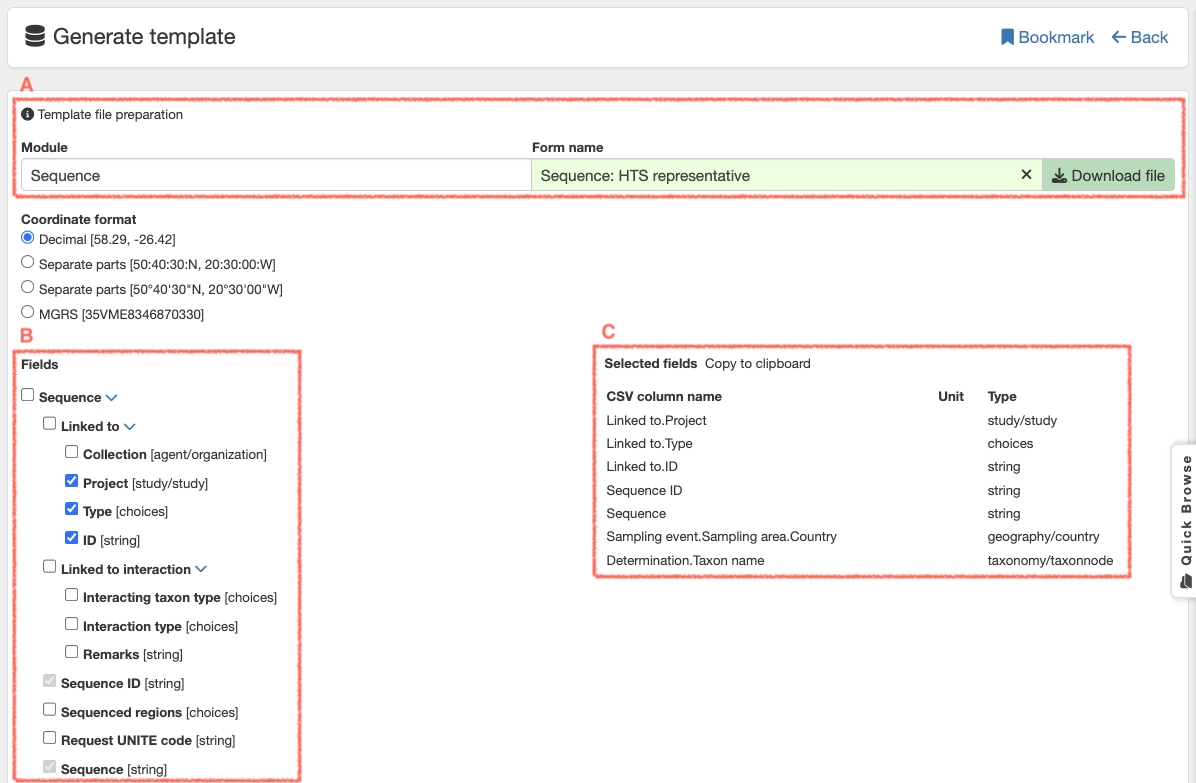
Figure 10. Follow these simple steps to set up your template file. A: Select the module and form name. B: Select the data fields to be imported. C: List of data fields selected for import.
STEP 2. Import Your Data
Once your template is ready, you can upload it to PlutoF:
1. Navigate to the Main menu and select Import → New (see Figure 11).
2. Upload your completed template file.
3. Select the Module name: Sequence.
4. Select the Form name: Sequence: HTS representative.
5. Choose your Project name.
6. Configure your Import settings (for example, check the box for "Use source record’s area and event if event columns are empty" if applicable).
7. Click the "Save and start" button.
Note: Clicking this button starts the interactive import process, which will guide you step-by-step. If any errors occur during the upload, PlutoF will notify you immediately so you can fix them.
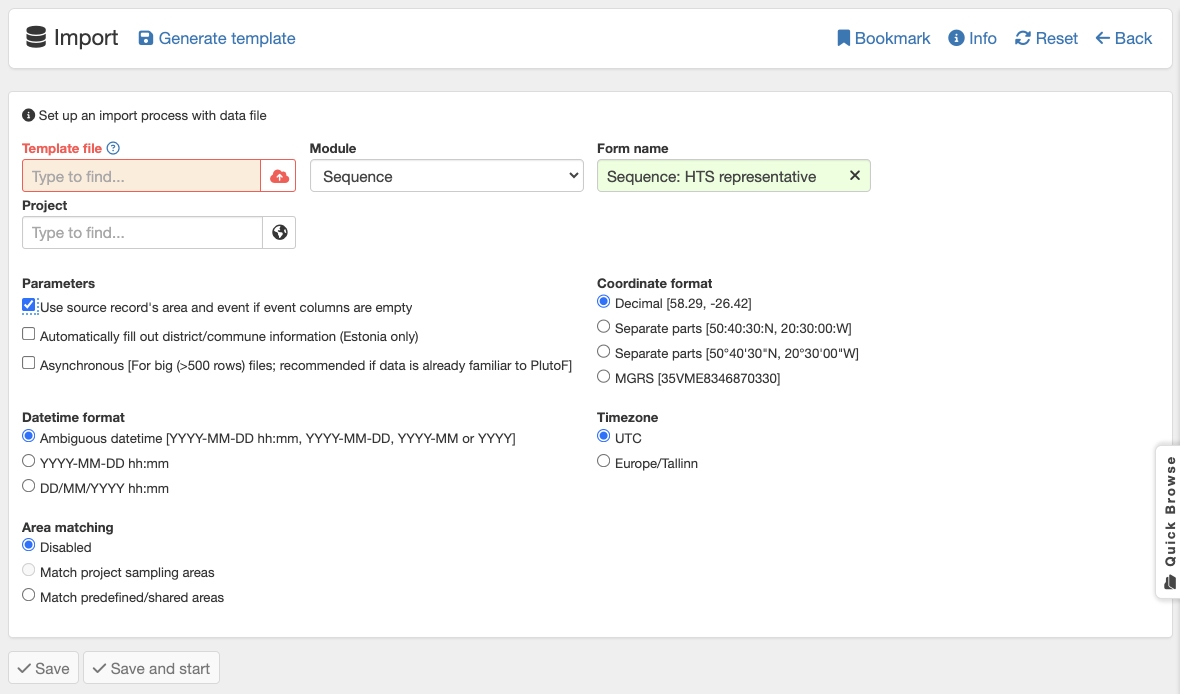
Figure 11. Starting the sequence import process.
-
To identify your sequences, use the UNITE SH Matching Analysis tool integrated into PlutoF (Abarenkov et al., 2022). By uploading your rDNA ITS sequences (ASVs/OTUs) from Step 9, the tool links them to official UNITE SH giving your identified taxa permanent, DOI-based identifiers (Step 13). Since these SHs are fully mapped to the GBIF taxonomic backbone, you can easily publish your eDNA taxon occurrences directly to GBIF (Abarenkov et al., 2023).
STEP 1. Add Sequences to Your Clipboar
You can add sequences to your PlutoF sequence clipboard in two ways:
• From a Project View: Go to the Related Records panel.
• From Search Results: Click the Clipboard icon
 next to the sequences
STEP 2. Run the SH Matching Analysis
1. Open your Sequence Clipboard.2. Scroll to the bottom of the page and click "New SH matching (all)" (see Figure 12).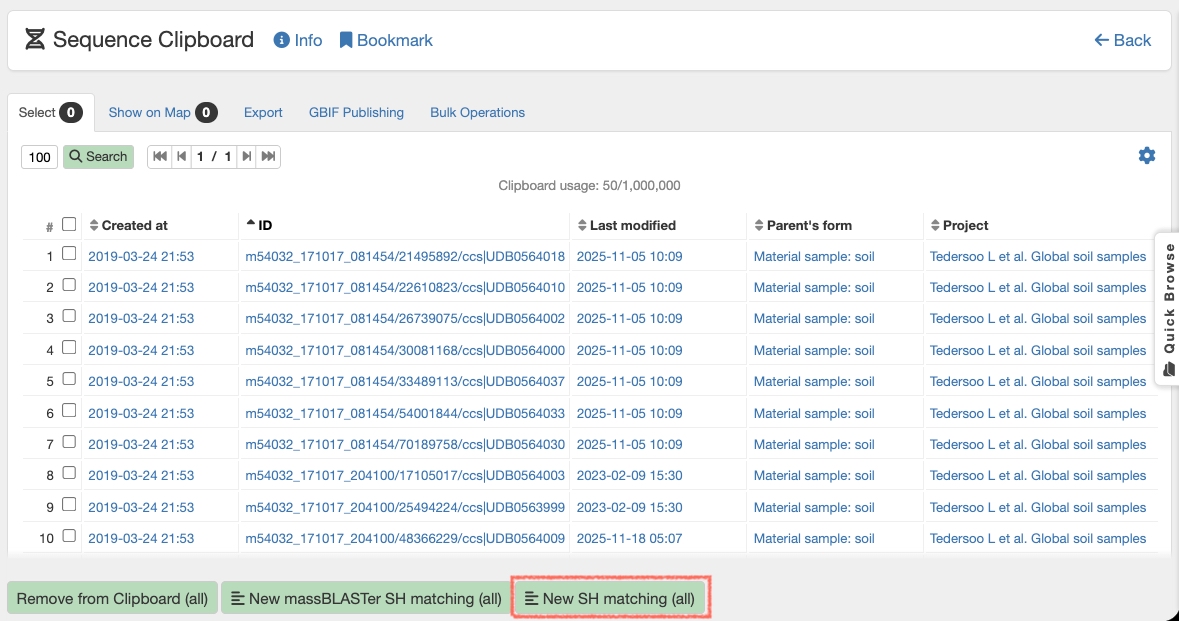
Figure 12. Starting the SH Matching analysis on the Sequence Clipboard.
STEP 3. View Your Results
Once the analysis finishes, you can view your results table by navigating to: Main Menu → Laboratories → Analysis Lab
The results page displays a table listing your query sequences alongside their assigned SH identifiers (Fig. 13).
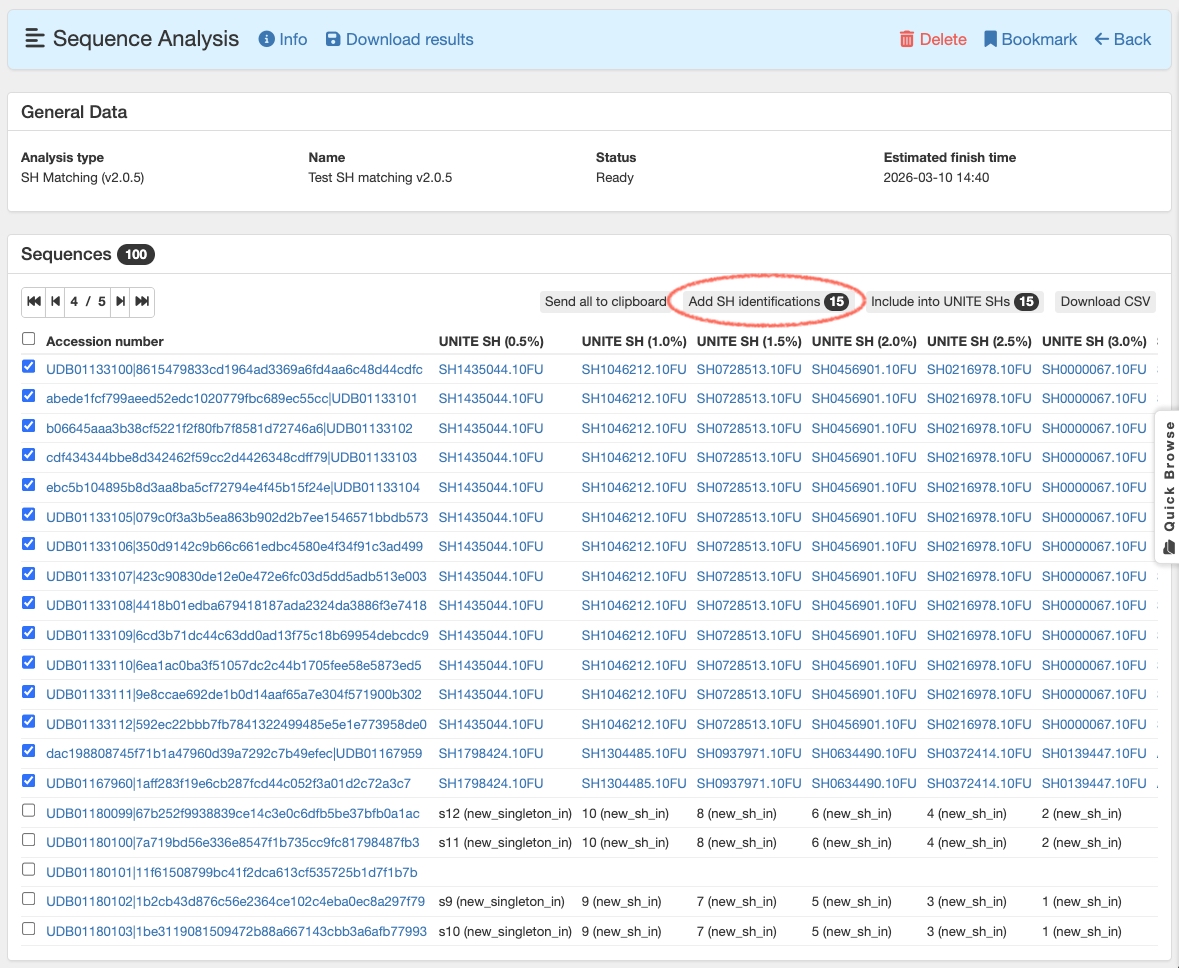
Figure 13. SH Matching analysis results.
STEP 4. Apply Identifiers or Submit New Sequences
Depending on your results, choose one of the following options:
For High-Match Sequences (e.g., assigned at 0.5% distance threshold with >99% similarity):
1. Select the check boxes for your target sequences2. Click "Add SH identifications".
Note: These assigned identifications will be included when you publish your data to GBIF as a DNA-derived taxon occurrence dataset.
For New/Unmatched Sequences:
- Select the sequences that represent novel hypotheses.
- Click "Include into UNITE SHs".
Note: These sequences will be integrated into the UNITE system during the next regular update, making them available for future matching.
Pro Tip: You can also import SH identifications in bulk from a CSV file using the PlutoF Import Module.
-
Why Publish Your Data to GBIF?
By publishing your project dataset to GBIF (Global Biodiversity Information Facility), you turn your eDNA-based biodiversity data into publicly discoverable, reusable, and citable resources complete with a DOI.
GBIF is an international network and research infrastructure funded by the world’s governments and aimed at providinganyone, anywhere, open access to data about all types of life on Earth.
Why sequence data matters for biodiversity?
“It is important to realise that a sequence with coordinates and a timestamp is a valuable biodiversity occurrence which is useful in a much broader context than its original purpose. To realise this potential, DNA-derived data needs to be discoverable through biodiversity data platforms” — Abarenkov et al., 2025.
For detailed best practices, check out the GBIF Guidelines for Publishing DNA-Derived Data presented in Abarenkov et al. 2025.
To get started, log into PlutoF workbench and navigate through the menu (Figure 14): Main menu ➔ LABORATORIES ➔ Publishing Lab ➔ GBIF Datasets ➔ + New
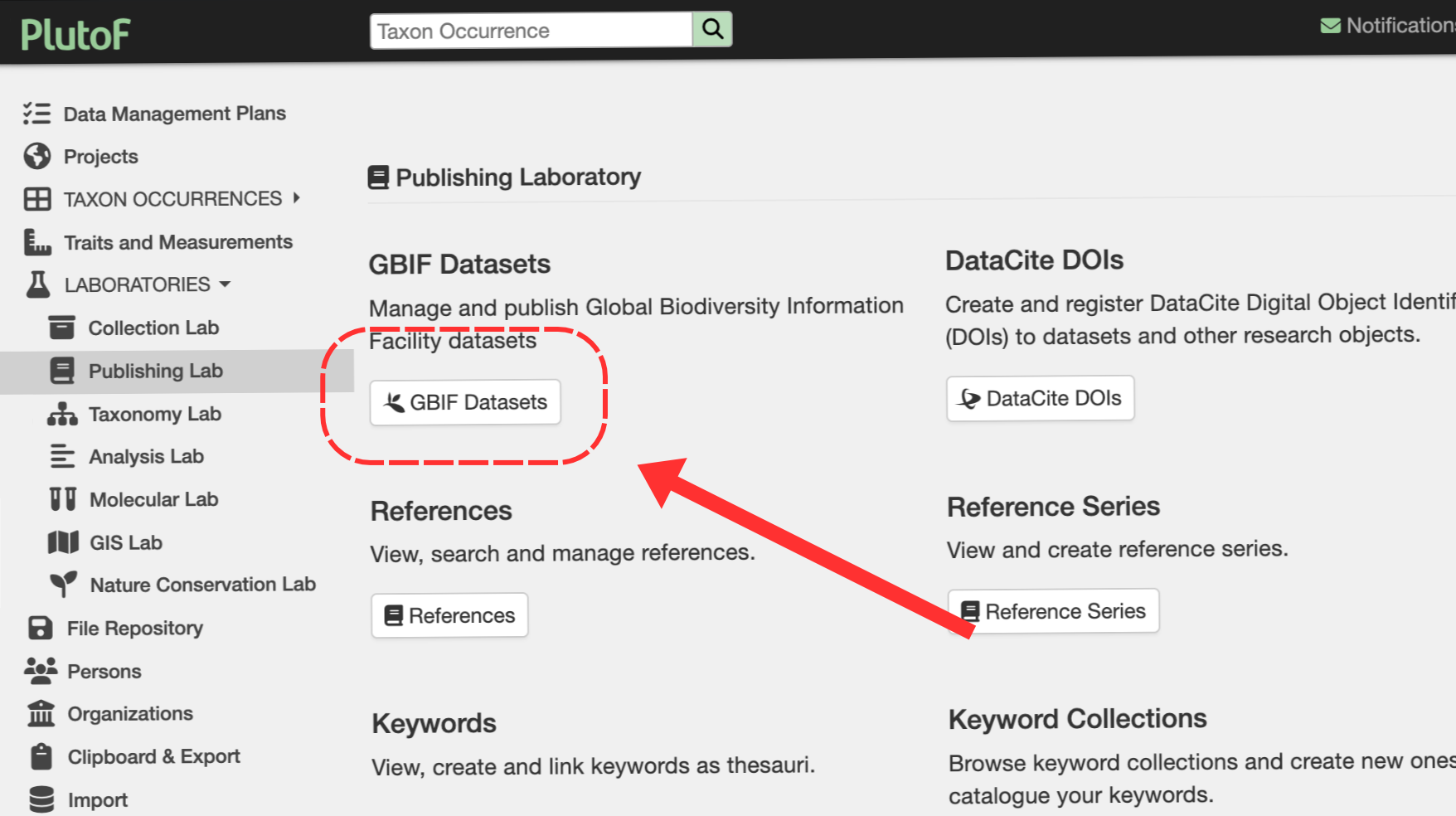
Figure 14. To manage or publish a global biodiversity dataset, click the 'GBIF Datasets' option in the main panel.
STEP 1. Create a New GBIF Dataset
Steps in PlutoF for preparing a new dataset for publication in GBIF include:
• General Metadata: Fill in all required project information.
• Logo: Upload a representative image of your project or organisation (optional).
• Project: Describe the overarching project under which the data was collected.
• Contacts: Add details for data creators, metadata providers, and general point-of-contacts.
• Bibliography: Add relevant citations from literature or online sources.
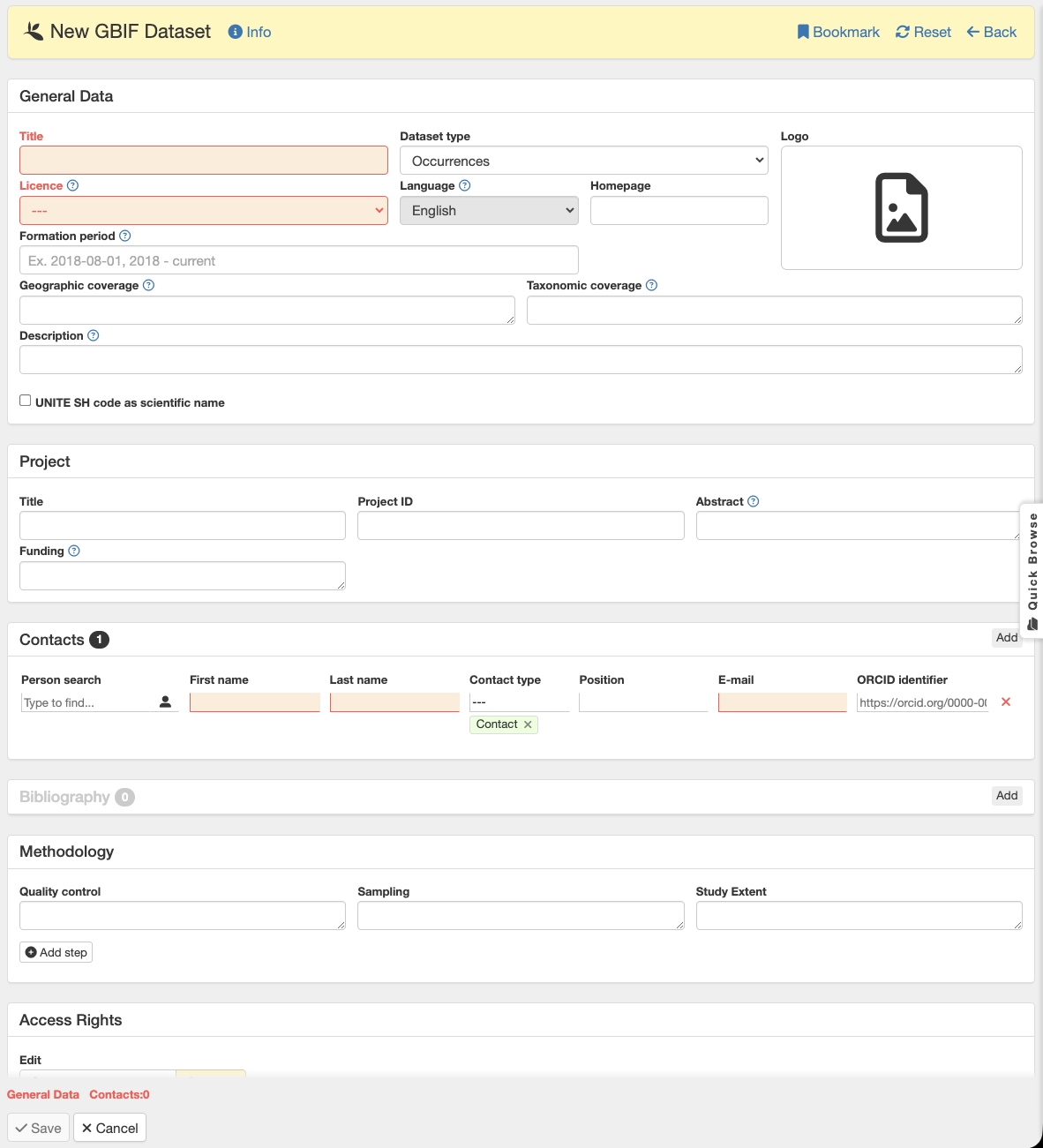
Figure 15. New GBIF dataset creation form with the mandatory metadata fields indicated in red.
STEP 2. Add Your Sequences to the Dataset
Once your dataset container is ready, link your DNA sequences using the Sequence Clipboard:
1. Open your project view and look for the Related Records: Sequences panel.
2. Click the Clipboard icon to copy your project sequences to the Sequence Clipboard (Fig. 16).
3. Navigate to the GBIF Publishing tab.
4. Use the autocomplete field to select your newly created dataset name and link the sequences (Fig. 17).

Figure 16. Copying project sequences to Sequence Clipboard.
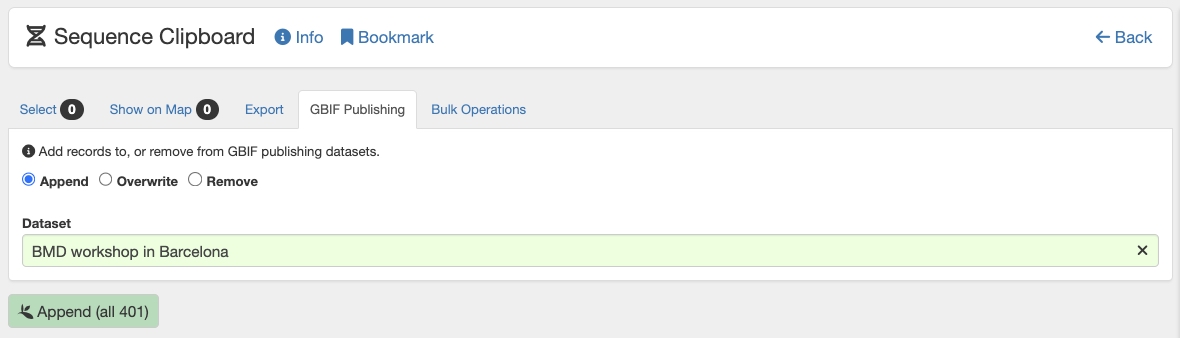
Figure 17. Associating DNA sequence records with the GBIF dataset.
STEP 3. Review and Generate Darwin Core Archive (DwCA)
Before going live, verify your data package:
1. Return to your GBIF dataset page: Main menu ➔ Publishing ➔ GBIF Datasets.
2. Select your dataset and click Generate DwCA to create the Darwin Core Archive file.
3. Go to the History panel, download the generated .zip / DwCA file, and review it to ensure all details and sequence associations are correct.
STEP 4. Publish & Get Your DOI!
Everything looks good? You're ready to publish!
1. Click the Publish to GBIF button.
2. Once published, your dataset will automatically be assigned an official GBIF DOI (Figure 18).
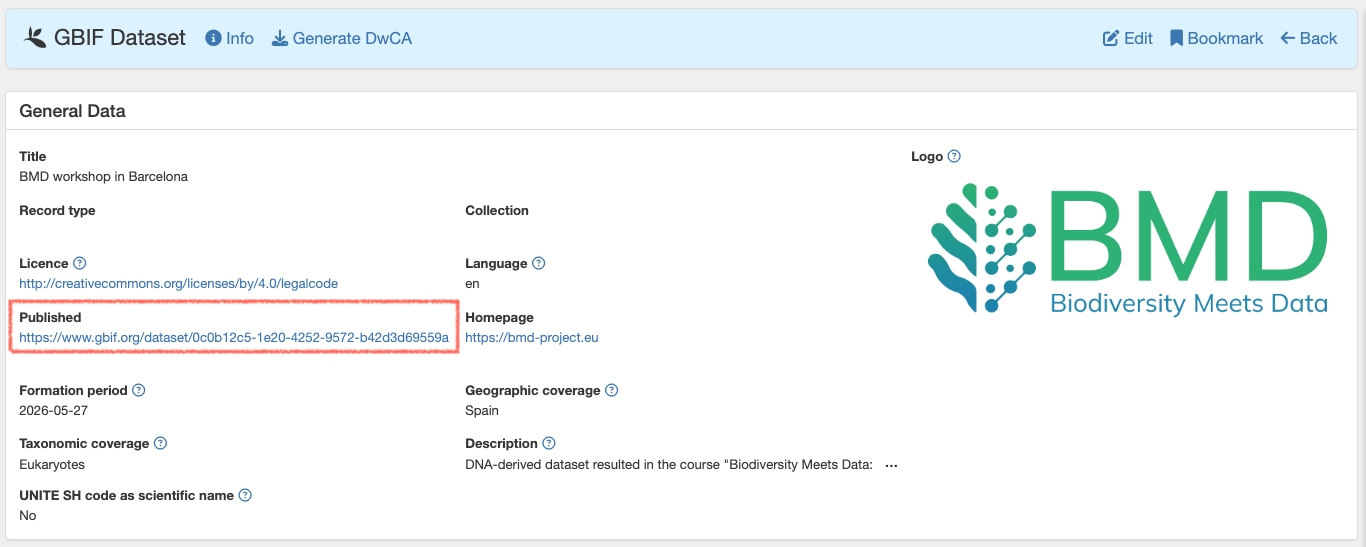
Figure 18. Dataset published to GBIF.
Congratulations! Your data is now indexed on the GBIF portal, fully citable, and available to researchers worldwide.
-
Managing Your GBIF Datasets in PlutoF
1. Dataset Basics One project at a time: Each GBIF dataset can contain data from only one PlutoF project. Create anytime: Anyone can create a new dataset whenever needed.
2. Publishing for the First Time Before your dataset goes live on GBIF for the very first time, it needs a quick review: Once your dataset is ready, reach out to the admin team at support@plutof.ut.ee to request an evaluation. An administrator will verify the dataset before its initial publication. Good news: Any future updates or re-publishes won't need this approval process!
3. Updating & Re-publishing: You can re-publish previously published datasets at any time to add/remove records or update metadata. While publishing: You can still edit your dataset while it is in the middle of being published, but you will need to wait until the current publishing process finishes before you can re-publish again.
4. Deleting a Dataset: While published datasets can be deleted, they never fully disappear. They will still be accessible via a direct link on GBIF, but they will be empty (contain no records) and will no longer show up in new searches on the GBIF portal.
5. Your GBIF Page Link: Once published, your dataset gets its own official page on gbif.org. Patience is key: The page becomes available immediately, but it can take up to 24 hours for all the content to fully load and display, depending on GBIF's system traffic.
-
Abarenkov, Kessy; Tedersoo, Leho; Nilsson, R. Henrik; Vellak, Kai; Saar, Irja; Veldre, Vilmar; Parmasto, Erast; Prous, Marko; Aan, Anne; Ots, Margus; Kurina, Olavi; Ostonen, Ivika; Jõgeva, Janno; Halapuu, Siim; Põldmaa, Kadri; Toots, Märt; Truu, Jaak; Larsson, Karl-Henrik; Kõljalg, Urmas (2010). PlutoF - a Web Based Workbench for Ecological and Taxonomic Research, with an Online Implementation for Fungal ITS Sequences. Evolutionary Bioinformatics, 6, 189 - 196