12. Assigning UNITE SH identifiers
Section outline
-
To identify your sequences, use the UNITE SH Matching Analysis tool integrated into PlutoF (Abarenkov et al., 2022). By uploading your rDNA ITS sequences (ASVs/OTUs) from Step 9, the tool links them to official UNITE SH giving your identified taxa permanent, DOI-based identifiers (Step 13). Since these SHs are fully mapped to the GBIF taxonomic backbone, you can easily publish your eDNA taxon occurrences directly to GBIF (Abarenkov et al., 2023).
STEP 1. Add Sequences to Your Clipboar
You can add sequences to your PlutoF sequence clipboard in two ways:
• From a Project View: Go to the Related Records panel.
• From Search Results: Click the Clipboard icon
 next to the sequences
STEP 2. Run the SH Matching Analysis
1. Open your Sequence Clipboard.2. Scroll to the bottom of the page and click "New SH matching (all)" (see Figure 12).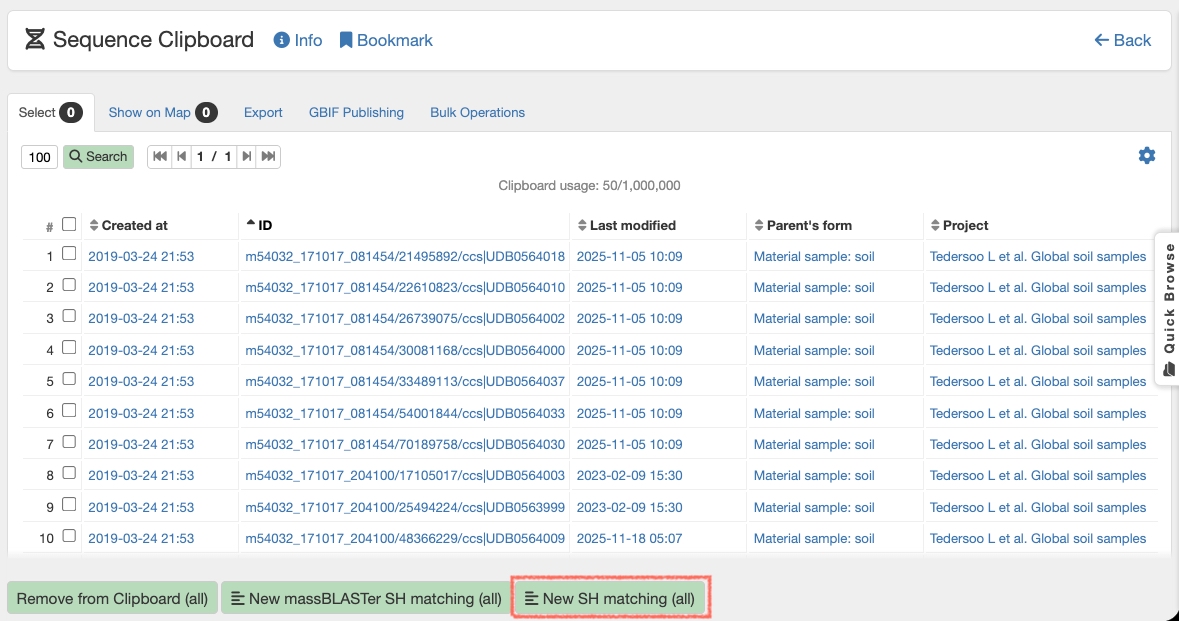
Figure 12. Starting the SH Matching analysis on the Sequence Clipboard.
STEP 3. View Your Results
Once the analysis finishes, you can view your results table by navigating to: Main Menu → Laboratories → Analysis Lab
The results page displays a table listing your query sequences alongside their assigned SH identifiers (Fig. 13).
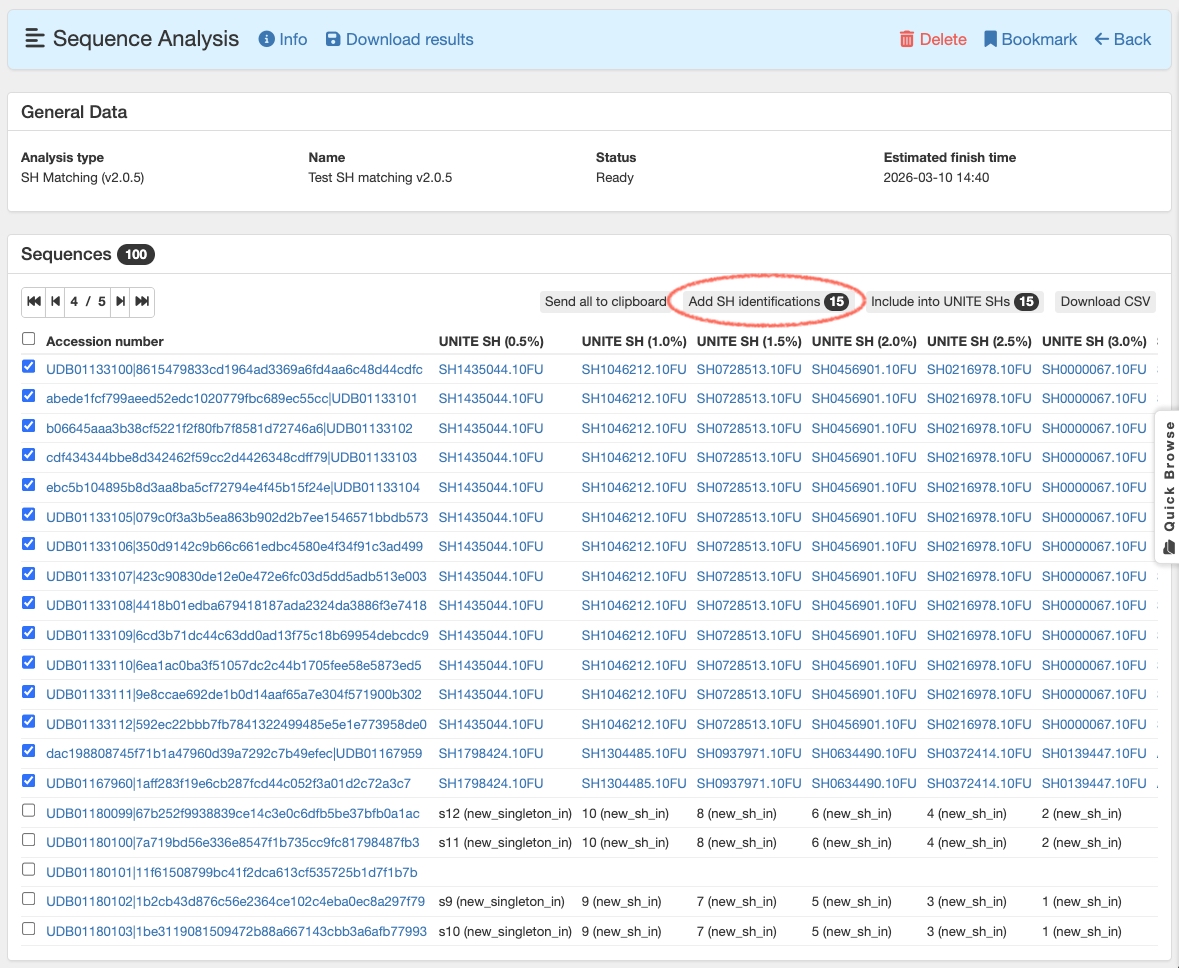
Figure 13. SH Matching analysis results.
STEP 4. Apply Identifiers or Submit New Sequences
Depending on your results, choose one of the following options:
For High-Match Sequences (e.g., assigned at 0.5% distance threshold with >99% similarity):
1. Select the check boxes for your target sequences2. Click "Add SH identifications".
Note: These assigned identifications will be included when you publish your data to GBIF as a DNA-derived taxon occurrence dataset.
For New/Unmatched Sequences:
- Select the sequences that represent novel hypotheses.
- Click "Include into UNITE SHs".
Note: These sequences will be integrated into the UNITE system during the next regular update, making them available for future matching.
Pro Tip: You can also import SH identifications in bulk from a CSV file using the PlutoF Import Module.