5. Registering samples in the field using the PlutoF GO app
Section outline
-
Download the PlutoF GO app from your device's app store; it's available on both the Google Play Store (for Android) and the App Store (for iOS). To log in, simply use your existing PlutoF username and password! There’s no need to create a new account, just sign in with the same credentials you use on the web!
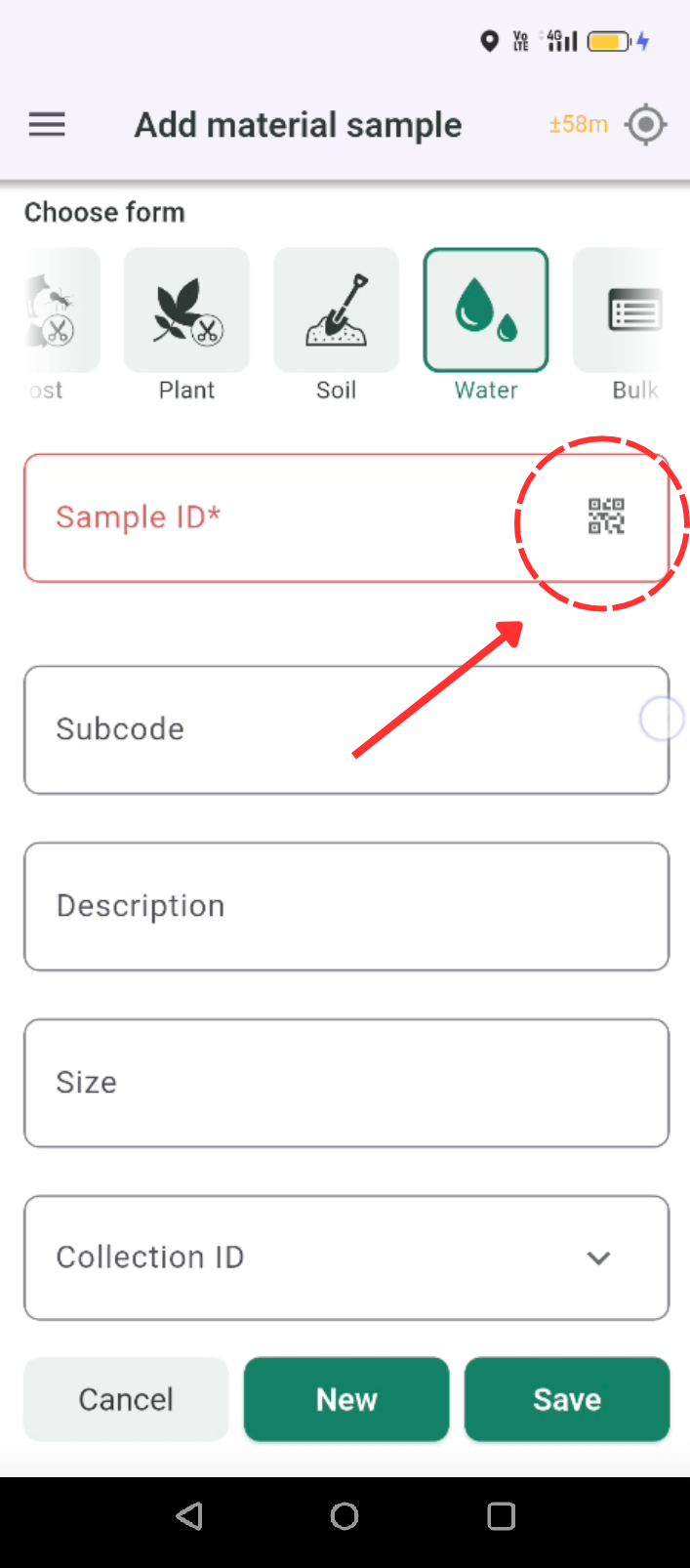
To create a new sample record in the PlutoF GO app (Fig. 7a,b):
1. Tap "Add material sample" button and choose the correct input form, "Water" in our example (Fig. 7a);
2. Scan a sample identifier by tapping the QR icon in the Sample ID field (Fig. 7b);
3. Fill out required fields and Save. Keep an eye out for fields highlighted in red, these are mandatory;
4. Upload Your Data, whenever you're ready to sync your records to the PlutoF workbench, simply tap the Upload icon
 in the top header.
Note: Before adding any new samples, make sure to select your project. You can choose one using the search field while entering a sample, or set a Default project beforehand in the app Settings.
a)b)Figure 7a. Creating a new sample record in the PlutoF GO app; 7b. Sample identifiers can be scanned by clicking the QR icon in the Sample ID field.