11. Uploading OTU/ASV representative sequences to PlutoF
Section outline
-
You can easily upload your OTU representative sequences and ASVs into PlutoF using the built-in import module. Just follow these simple steps to prepare and import your data:
STEP 1. Download the Import Template
1. Go to the Main menu and select Import → Generate template.
2. Configure your template settings using the following options (as shown in Figure 10):
Model: Select “Sequence”
Form name: Select “Sequence: HTS representative”
3. Select your data fields in the list to be imported.
4. Click the "Download file" button to save the template file to your computer.
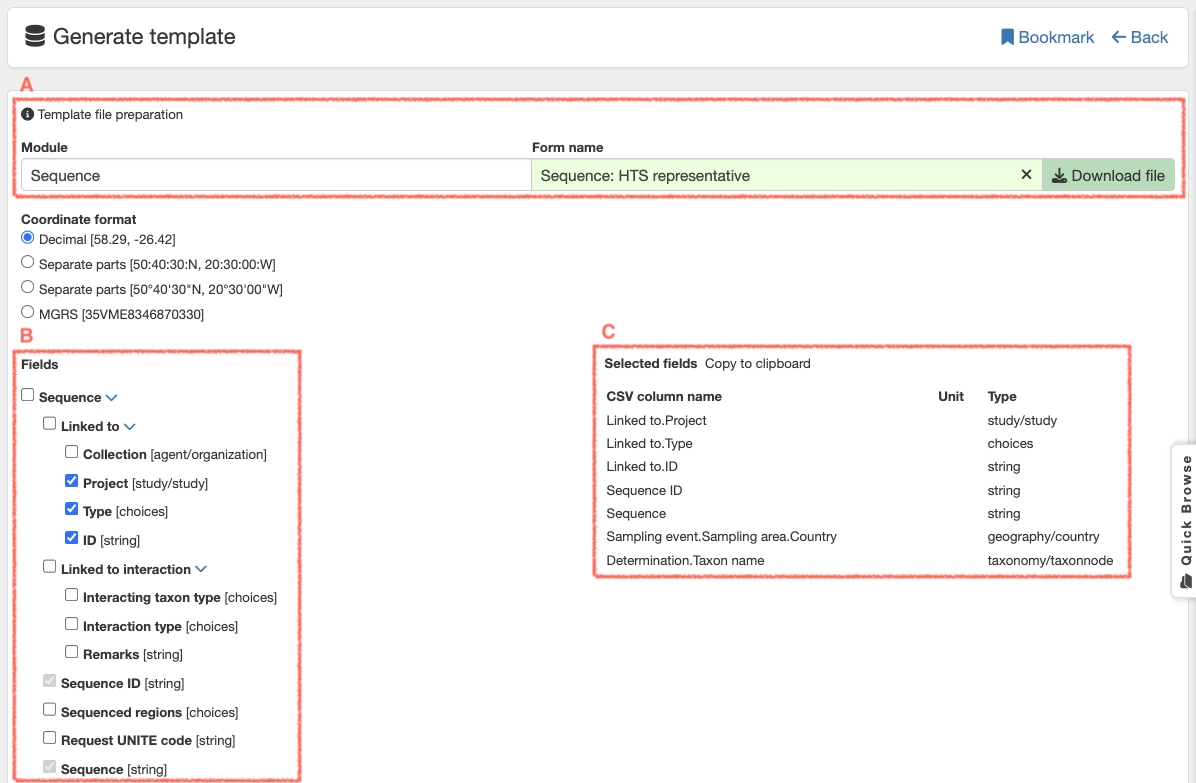
Figure 10. Follow these simple steps to set up your template file. A: Select the module and form name. B: Select the data fields to be imported. C: List of data fields selected for import.
STEP 2. Import Your Data
Once your template is ready, you can upload it to PlutoF:
1. Navigate to the Main menu and select Import → New (see Figure 11).
2. Upload your completed template file.
3. Select the Module name: Sequence.
4. Select the Form name: Sequence: HTS representative.
5. Choose your Project name.
6. Configure your Import settings (for example, check the box for "Use source record’s area and event if event columns are empty" if applicable).
7. Click the "Save and start" button.
Note: Clicking this button starts the interactive import process, which will guide you step-by-step. If any errors occur during the upload, PlutoF will notify you immediately so you can fix them.
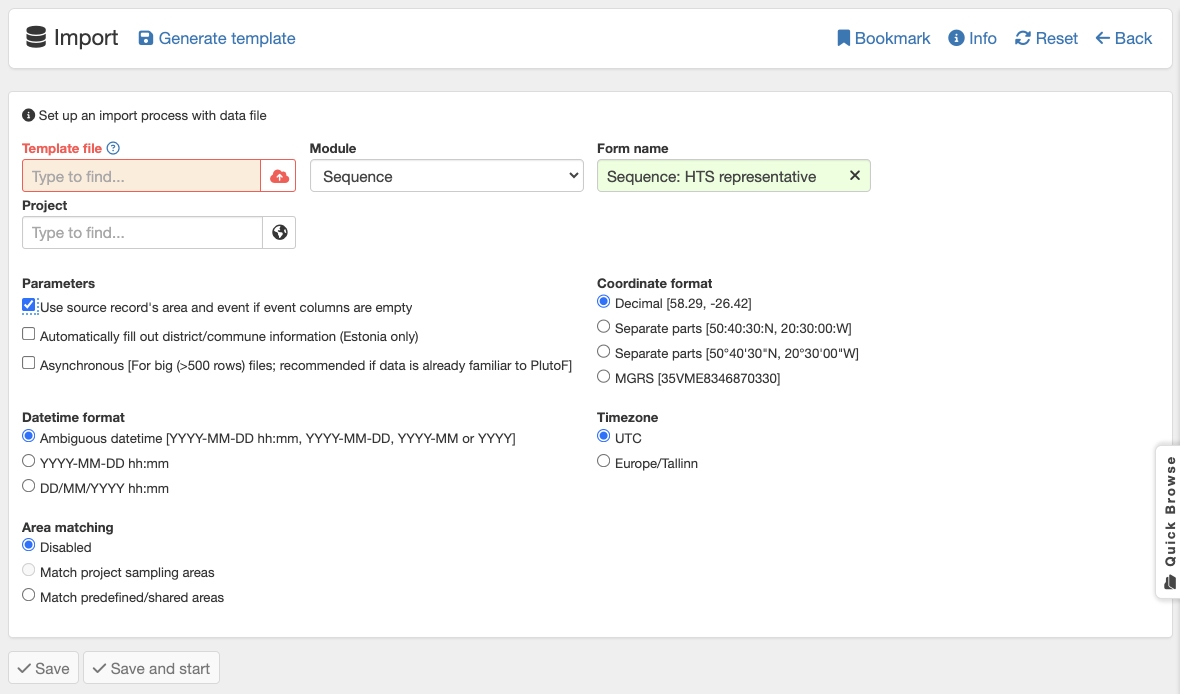
Figure 11. Starting the sequence import process.