4. Assigning QR identifier blocks
Section outline
-
You can create custom sample IDs and reserve specific identifier blocks for your team members. Download and print these IDs as identifier QR codes to quickly register samples in the field using the PlutoF GO app.
STEP 1. Create your identifier block (Fig. 4)
1. Define your custom ID format.
2. Assign access reserving the ID block for a specific team member, or check the box to share it with all project members.Figure 4. Creating a custom identifier block and set access rights for your team.
How permissions work:
Assigned to a user: Only that person can upload data using those IDs. Shared with everyone: Anyone with write access to the project can use them. Please note that All IDs must be unique within the project, duplicates aren't allowed.
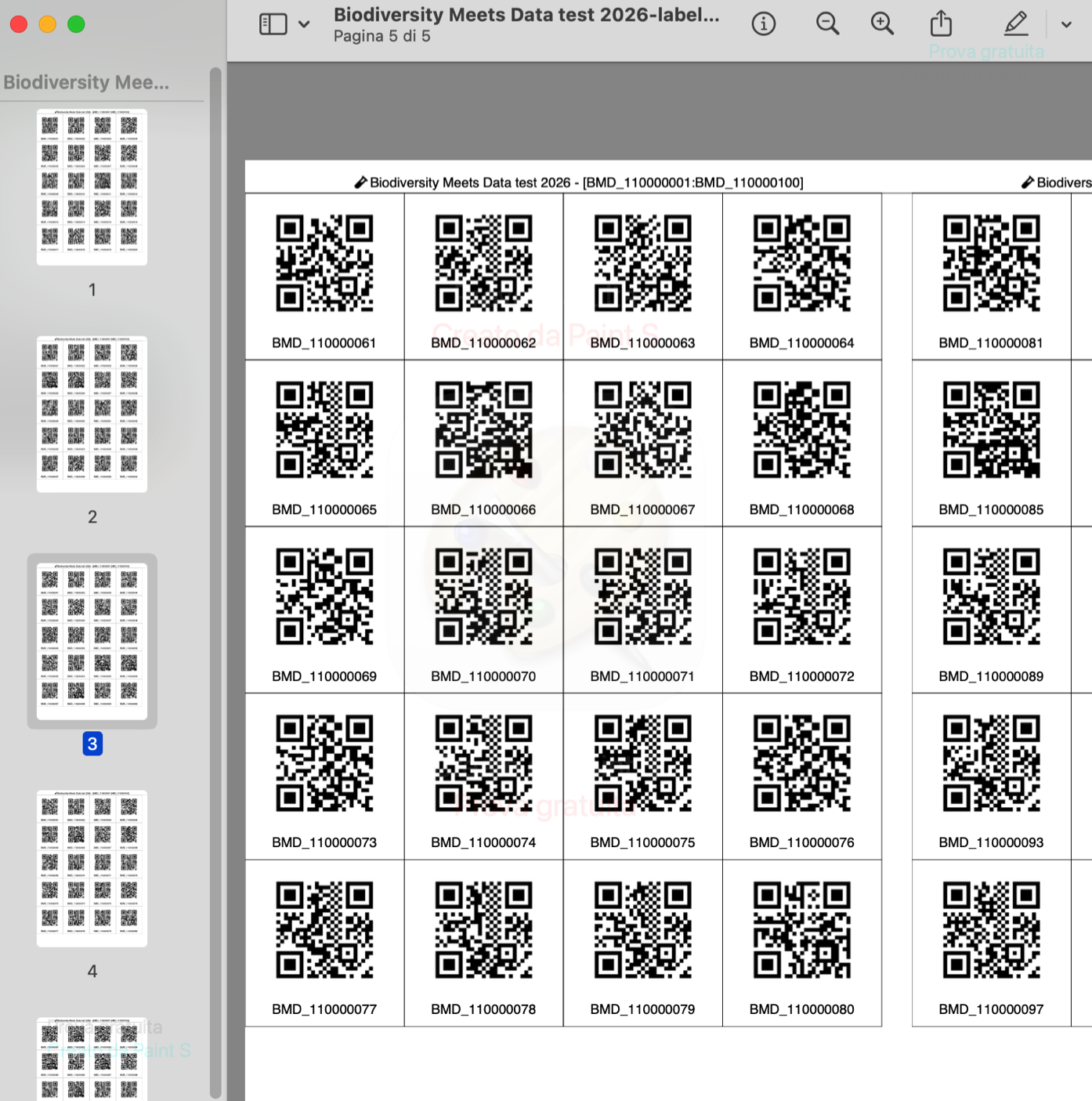
STEP 2. Print and use your QR labels (Fig. 5-6a,b)
1. Click Print labels in the Reserved identifier blocks panel, .
2. Choose the format and print the QR codes onto sticker labels and attach them to your sample bags, tubes, or envelopes.
3. Scan the stickers in the field with the PlutoF GO app to instantly record sampling data.
Figure 5. Downloading QR codes labels.
a)
 b)
b)
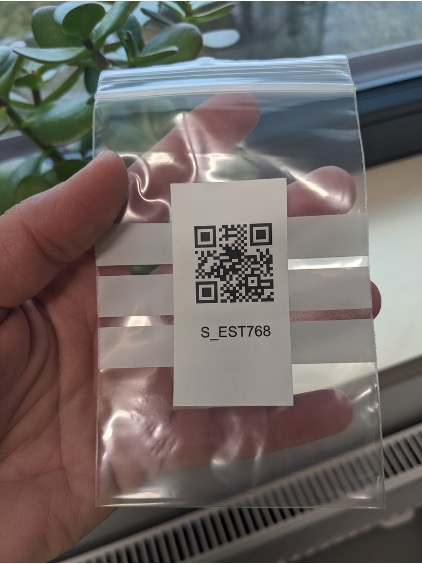
Figure 6a. Example of 100 print-ready QR code labels; 6b. Sample bag with a QR code sticker, ready for field scanning. Photo credit: Inga Hiiesalu-Vahter.