6. Managing sample data on the PlutoF workbench
Section outline
-
PlutoF GO app →→→→ PlutoF workbench
Once you’ve uploaded data from the PlutoF GO app or imported it via CSV files, you can easily validate, organise, and edit it directly on the PlutoF workbench. Users can update individual records or use the bulk update functionality in the Clipboard to modify multiple records simultaneously.
You can access all project data directly from the Project View (Figure 8) where you can quickly search for related material samples or add records to your Clipboard.
Once in the Clipboard, you can:
• View your records on an interactive map;
• Export data in multiple formats;
• Perform bulk edits;
• Send records for analysis.
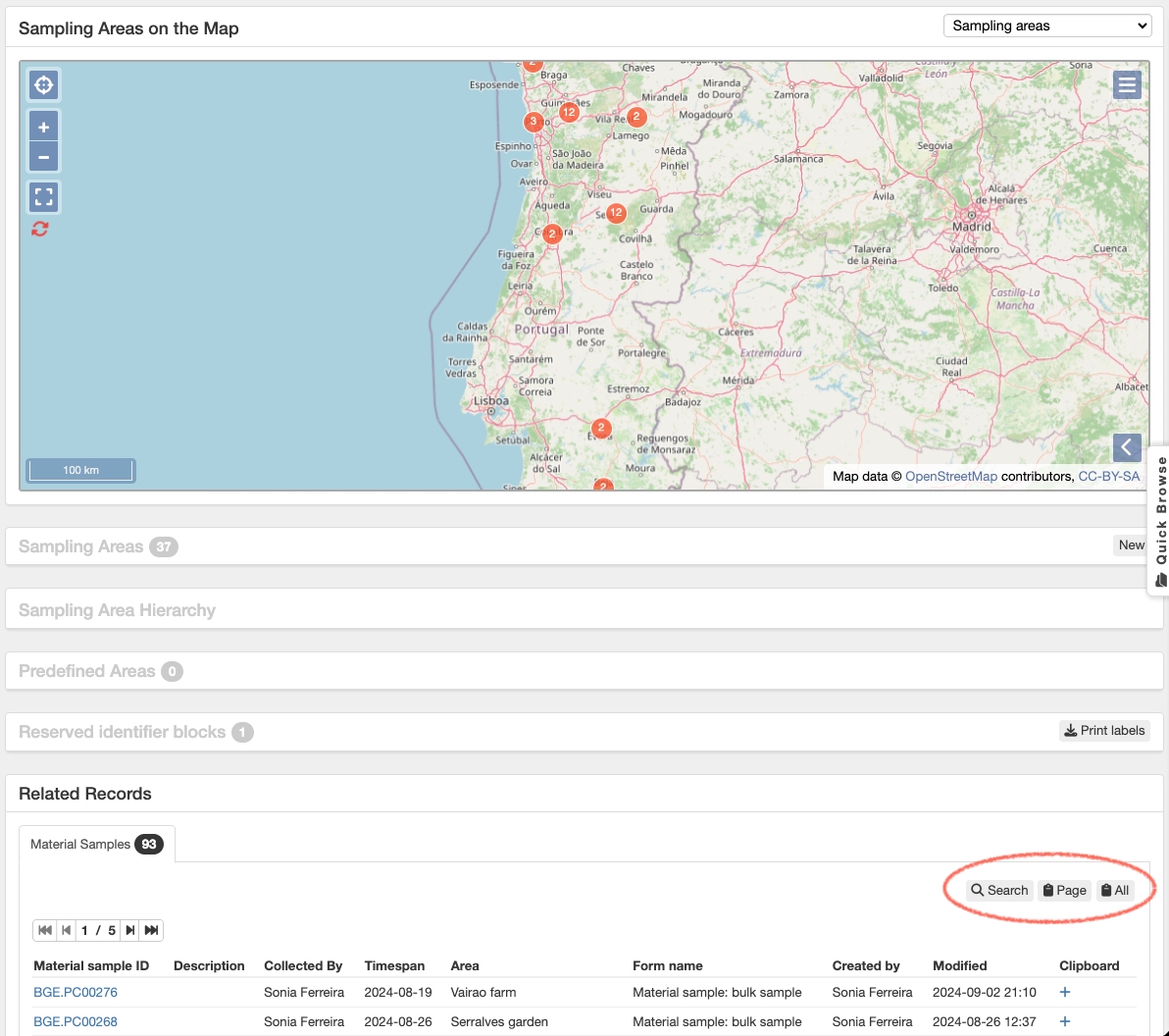
Figure 8. Project view featuring quick shortcuts for searching project data and accessing Clipboard functionalities.