1. Creating a PlutoF account
Section outline
-
Go to app.plutof.ut.ee/register to create your account and compile the form (Fig.1a). Remember to accept the PlutoF Terms and Conditions to complete your registration and log in!
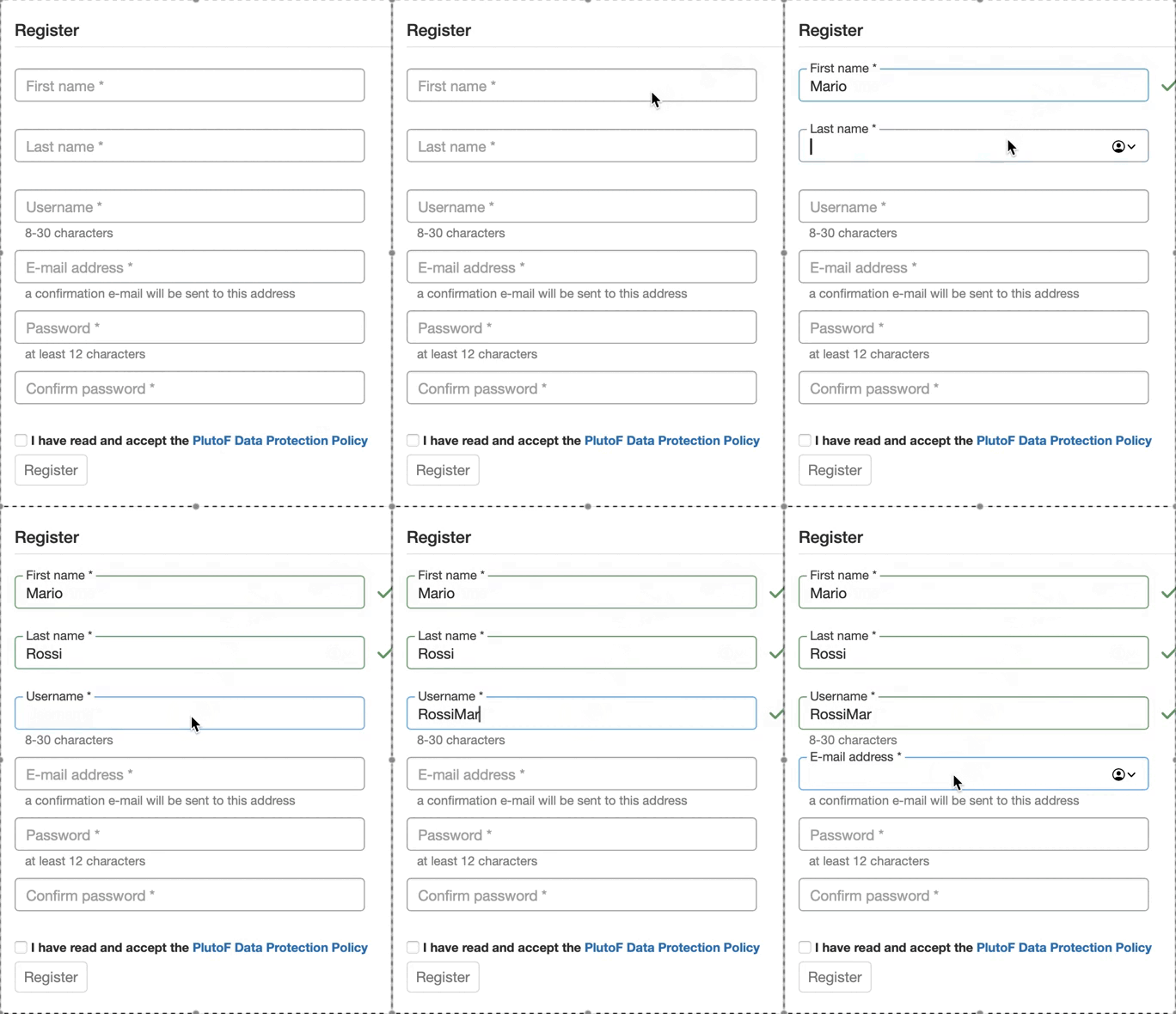
Figure 1a. Registration form for the PlutoF platform.
Once you submit the form, we'll send a confirmation email with an activation code (Fig.1b) to your inbox.
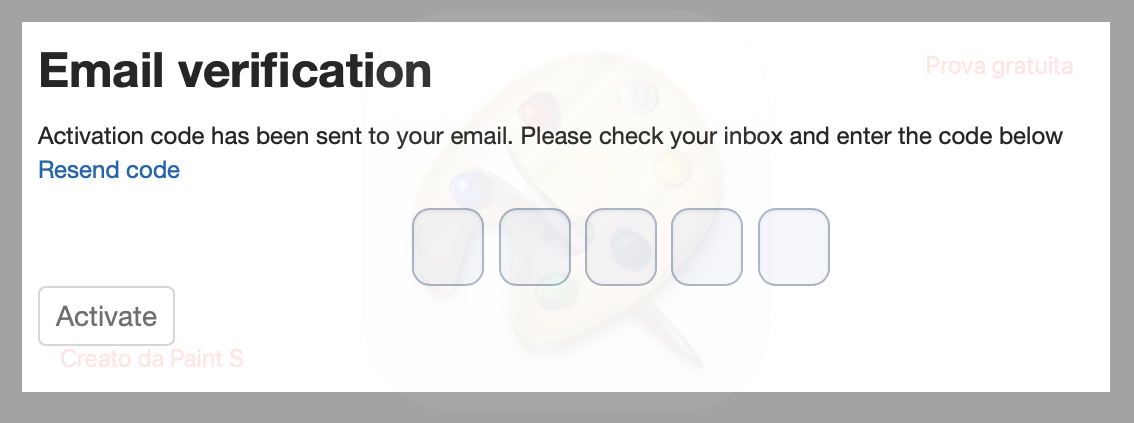
Figure 1b. Copy and paste the five-digit code to complete your account activation.
NOTE: If you do not receive the confirmation email, please check your Spam folder.
The same PlutoF account should be used to log in to the PlutoF GO app.
Password recovery: If you forget your password, you can recover it at https://app.plutof.ut.ee/recover-password.
What is PlutoF GO?
PlutoF GO is a mobile tool designed for collecting biodiversity data right out in the field. It lets you gather information offline, automatically fills in your GPS location and current date/time, and even allows you to scan QR codes directly from sample labels (see section 4). When you're ready, you can upload your saved data to the PlutoF workbench immediately or hold onto it to edit later or wait for a better internet connection.
To log in to the PlutoF GO app, simply use your existing PlutoF account credentials. You don't need to create a new profile, just log in with the same username and password you use for the web platform.
Find more information here.