11. Check the results
On the action column on the right area of the desk, you can select the workflow of your interest, duplicate, see the detailed information, run it again or deleted.
If you press ‘Workflow list’, you will be redirected into your Dashboard (Fig. 15) where you can find all your workflows and their status. On the right area of the desk, the action column, you can choose in order among select the workflow of your interest, duplicate, see the detailed information which will route you to the workflow insight (Fig. 16), run it again the workflow or deleted it.

Fig. 15. Dashboard of the workflow.

Fig. 16. Button for the detailed information.
ATTENTION: The running time is highly dependent on the dataset dimensions and the number of selected regions. For simulated datasets, the execution time is typically under a few minutes.
Workflow insight
Here you will find four panels:
1. General information includes several information regarding the workflow (Fig. 17).
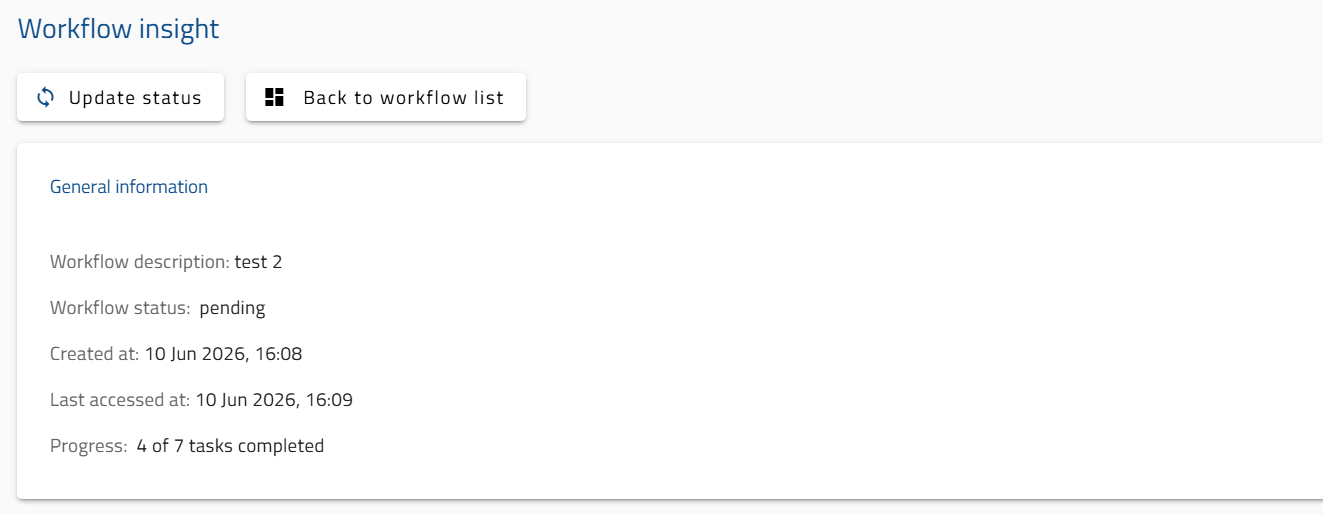
Fig. 17. Control panel dedicated to monitoring workflow status.
2. Workflow status diagram provides a clear visual overview of your workflow and individual service statuses (Fig. 18).
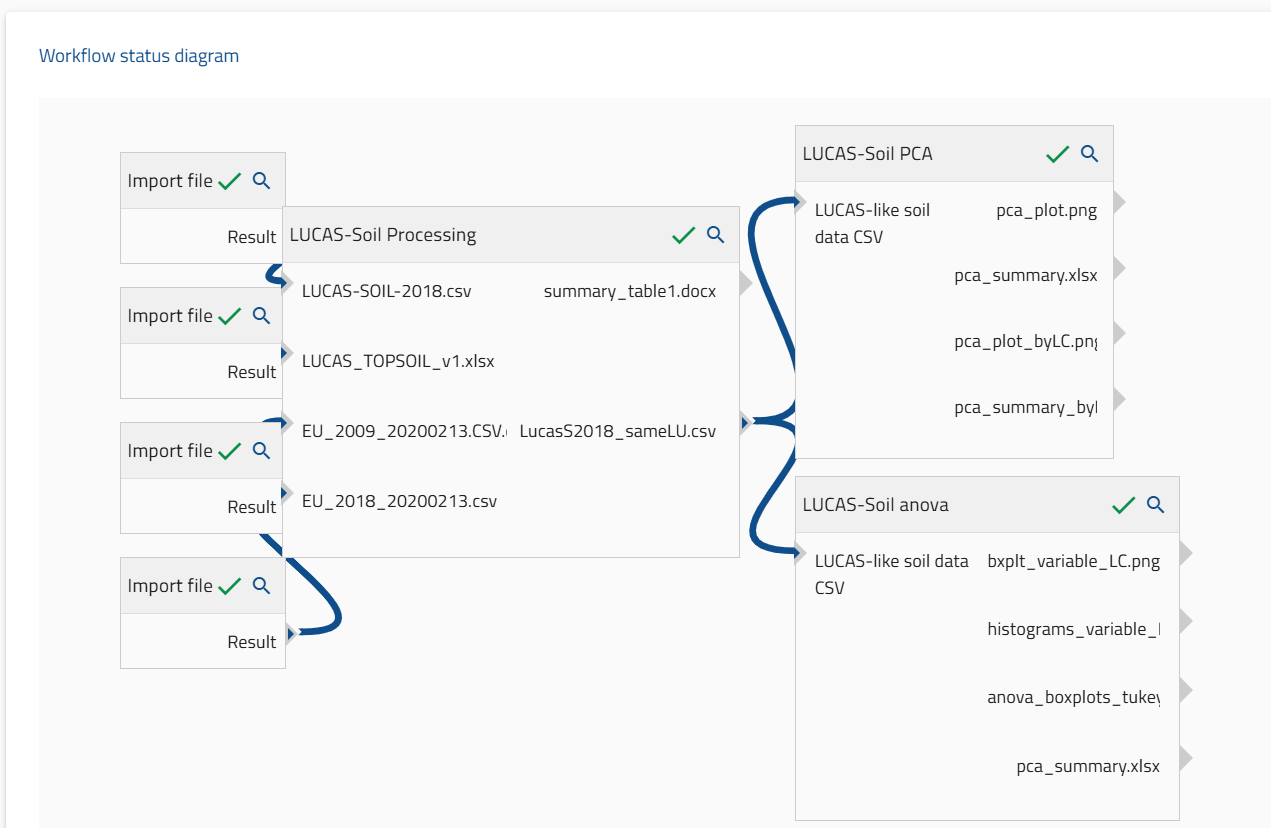
Fig.18. Workflow status diagram.
3. Workflow output files allows you to retrieve the results for all analysis (Fig. 19). Here you can find the individual outputs for each component of the workflow, as well as their text log files, and you can download them to your local hard disk or directly delete (Fig. 20).
- Within the ‘LucasSoilANOVA-6>mnt>outputs’ folder you will find all the outputs of the ANOVA.
- Within the ‘LucasSoilPCA-5>mnt>outputs’’ folder you will find all the outputs generated by the PCA.
- Within the ‘LucasSoilProcessing-4> mnt>outputs’’ folder you will find all the outputs generated during the LUCAS data and geographical data selection and exploration phase
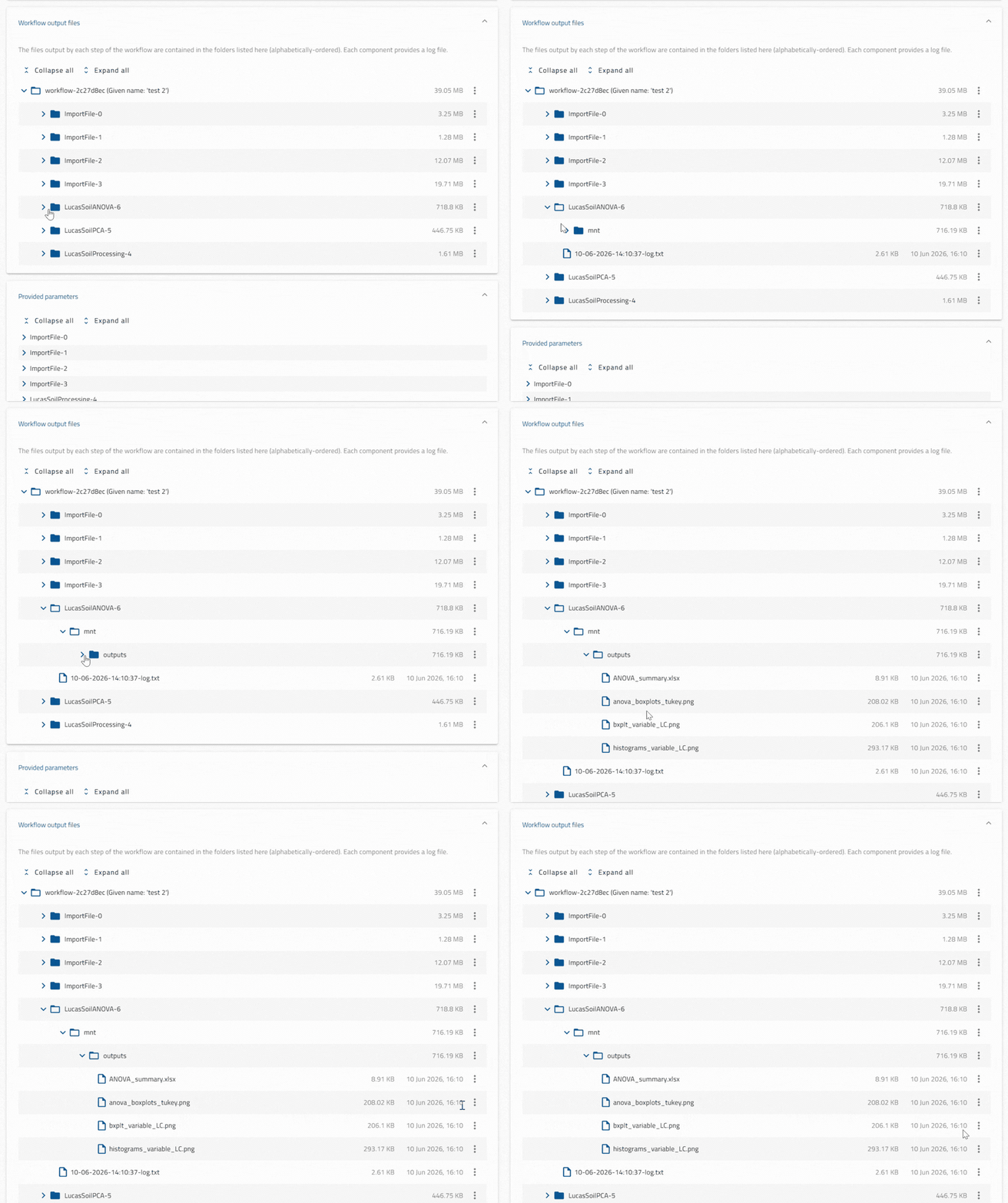
Fig. 20. By default, all folders are collapsed; however, they can be expanded by clicking the action toggle on the left. Expanding the folders allows access to the relevant outputs, which are available for individual download via the action column on the right.
4. Provided parameters allows you to view the details of the input files, the pre-processing phase, and the statistical analysis (Fig. 21). The folders are collapsed by default, but you can open them using the action toggle on the left.
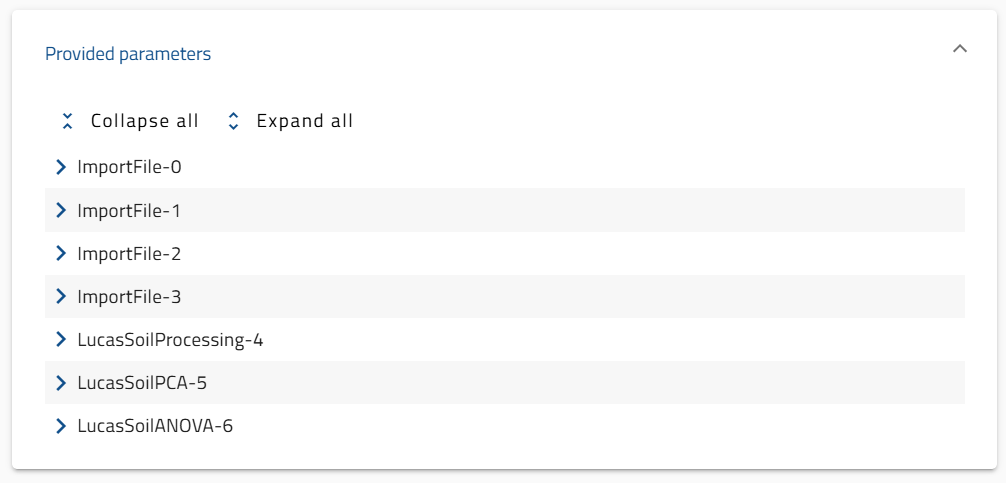
Fig. 21. Panel with the parameters provided by the VRE.