Section: 10.-11. Creating and launching the workflow | Biotope - Cumulative IMPacts of invasive ALien species (CIMPAL) version | LifeWatch ERIC Training Platform

Main course page
  • Biotope - Cumulative IMPacts of invasive ALien species (CIMPAL) version

    What this tutorial is about
    This tutorial will guide you during the use of the CIMPAL (Cumulative IMPacts of invasive ALien species) version of the Biotope vulnerability Workflow, which assesses the habitat vulnerability to the introduction and establishment of Invasive Alien Species (IAS) and the cumulative effects of their negative impacts. The tutorial will clarify how to prepare the input data, as well as the step-by-step use of the workflow.

    About the workflow
    You can access the workflow through My Lifewatch Platform at  https://my.lifewatch.eu under LifeWatch ERIC Products/ LifeWatch VREs/ Biotope/  Run a new workflow/ CIMPAL.
    For further information regarding the overall initiative that leaded to the design of the validation cases and the development of the workflows, please consult  the LifeWatch Internal Joint Initiative dedicated platform: https://www.lifewatch.eu/internal-joint-initiative/workflows/.

    Get in touch with the scientific team

    Heliana TeixeiraHeliana Teixeira, CESAM Centre for Environmental and Marine Studies, Biology Department, University of Aveiro


    Julien RadouxJulien Radoux, UCLouvain 


10.-11. Creating and launching the workflow

  • 10.-11. Creating and launching the workflow

    This is the final step of the Biotope vulnerability Workflow within the Internal Joint Initiative. Two options are available (Fig. 10):

    1.  Save the workflow’ which allows you to save for further modification;
    2.  ‘Save and launch the workflow’, which gives the instruction to the server to start computing CIMPAL with the provided data.
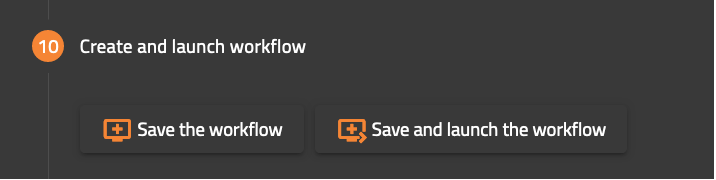
    create and launch the workflow

    Fig. 10. Create and launch workflow selection.

    Once you created your workflow, you can decide to run a new workflow or to visualize your Dashboard (Fig. 10).
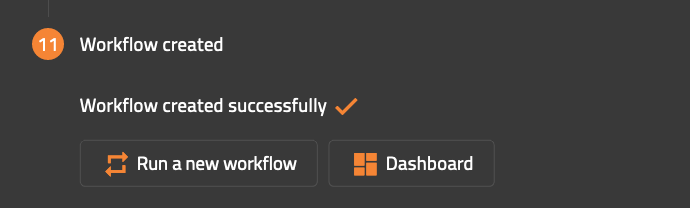
    workflow created

    Fig. 11. Confirmation panel.