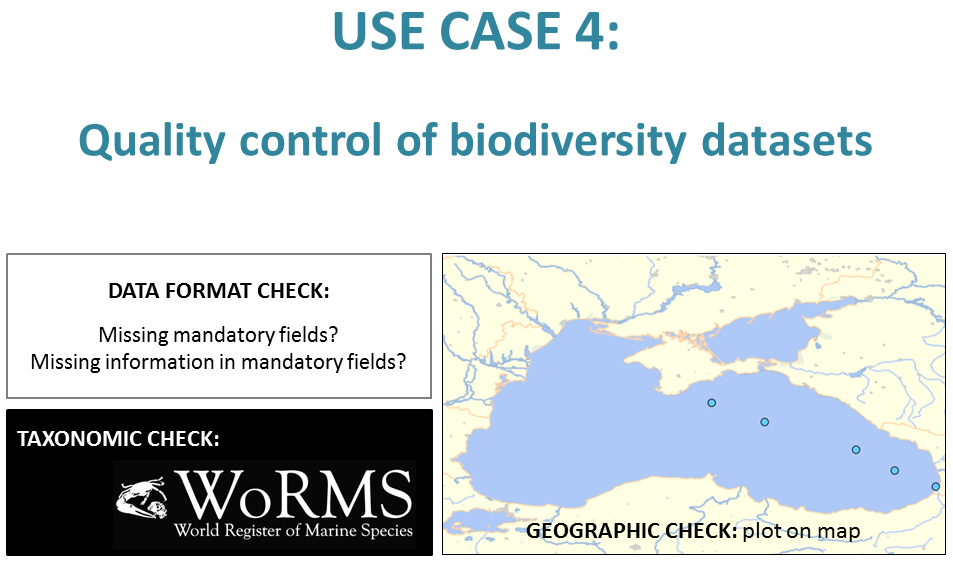
LifeWatch Belgium e-Lab: Quality Control of Biodiversity Data Sets
Section outline
-
This use case demonstrates how to upload an entire data set in order to perform a series of quality control steps on your data.
The uploaded data set needs to be in a certain data format. Several formats are currently available: the Darwin Core, the OBIS scheme and the LifeWatch data format. The Darwin Core is a standard that is used by the Global Biodiversity Information Facility (GBIF) and others. The OBIS scheme was built as an extension of the Darwin Core version 2. The LifeWatch data format was developed specifically for the LifeWatch.be portal and is based on both the Darwin Core and the OBIS scheme.
If the dataset is formatted in the OBIS scheme, you can choose the web service 'Check OBIS file'. This web service checks which mandatory fields are present or missing, and checks if values are missing in the mandatory fields. This web service also generates a map and validates the coordinates (sea-land) and the dates. Furthermore, this web service performs a taxon match with the World Register of Marine Species (WoRMS).
If the dataset is in the LifeWatch data format, you can choose the web service 'Data format validation'. This web service checks which fields do not belong to the data format, and validates the values in the fields longitude, latitude and eventdate. To further validate the content of the data set, you can choose additional data services. First, you can perform a taxonomic quality control through the web service 'Taxon match'. This web service checks if the uploaded taxon names are recorded in existing taxonomic databases and nomenclatures such as the World Register of Marine Species (WoRMS), the Catalogue of Life (CoL), the Integrated Taxonomic Information System (ITIS), Index Fungorum (IF), the International Plant Names Index (IPNI), the Global Names Index (GNI), the Paleobiology Database (Paleo), and the Pan-European Species directories Infrastructure (PESI). If a taxon name is available in these databases, this web service renders, for each database, its ID, its status (accepted or unaccepted) and its accepted name. The web service can match the uploaded taxon names to all taxonomic databases at once or to a selection. For instance, if the dataset contains purely marine taxa, you can select Taxon match World Register of Marine Species (WoRMS) and remove the other taxon matches. Second, you can perform a geographic quality control, i.e. check the coordinates, through the web service 'Show on map'. The output of this web service is a map with the plotted coordinates. Here you can verify very quickly if marine observation points are indeed plotted in marine areas, and terrestrial observation points are indeed plotted on land.
-
-
The 'Check OBIS file' web service needs to be performed separately, since the input file for this web service is a dataset in the OBIS scheme.
-
Check here the manual for more detailed information about the LifeWatch data format.
-
The 'Data format validation', 'Taxon match' and 'Show on map' web services can be performed simultaneously. The input file for these web services is a dataset in the LifeWatch data format.
-
-
To successfully run the use case you must follow these 5 steps:
- Upload your file
- Select web services
- Verify order, Change order (if necessary), and Run
- Preview Screen
- Getting the Results
Check out the instructions for each single step in the next blocks.
-
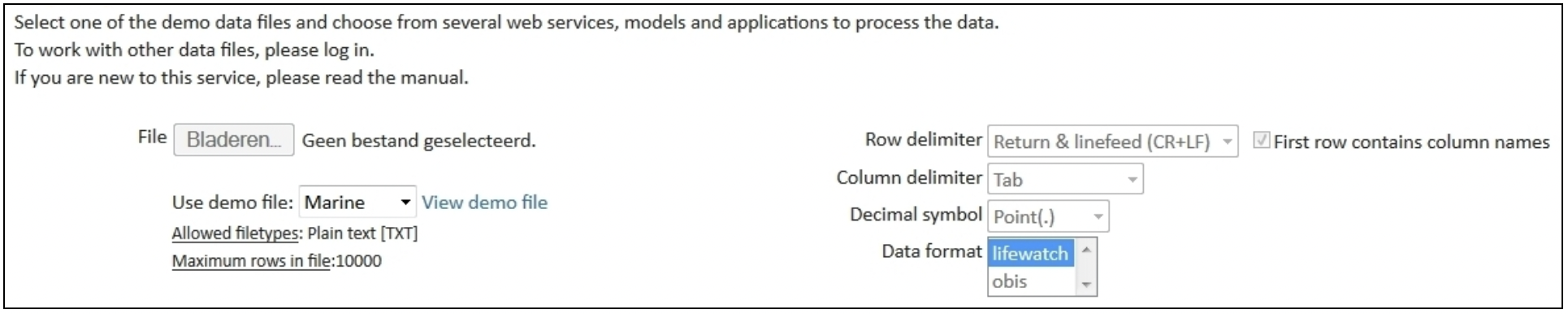
Upload your data file and select the relevant row and column delimiter and decimal symbol. Select the data format: OBIS scheme for 'Check OBIS file' and LifeWatch data format for 'Data format validation', 'Taxon match' and 'Show on map'.
-
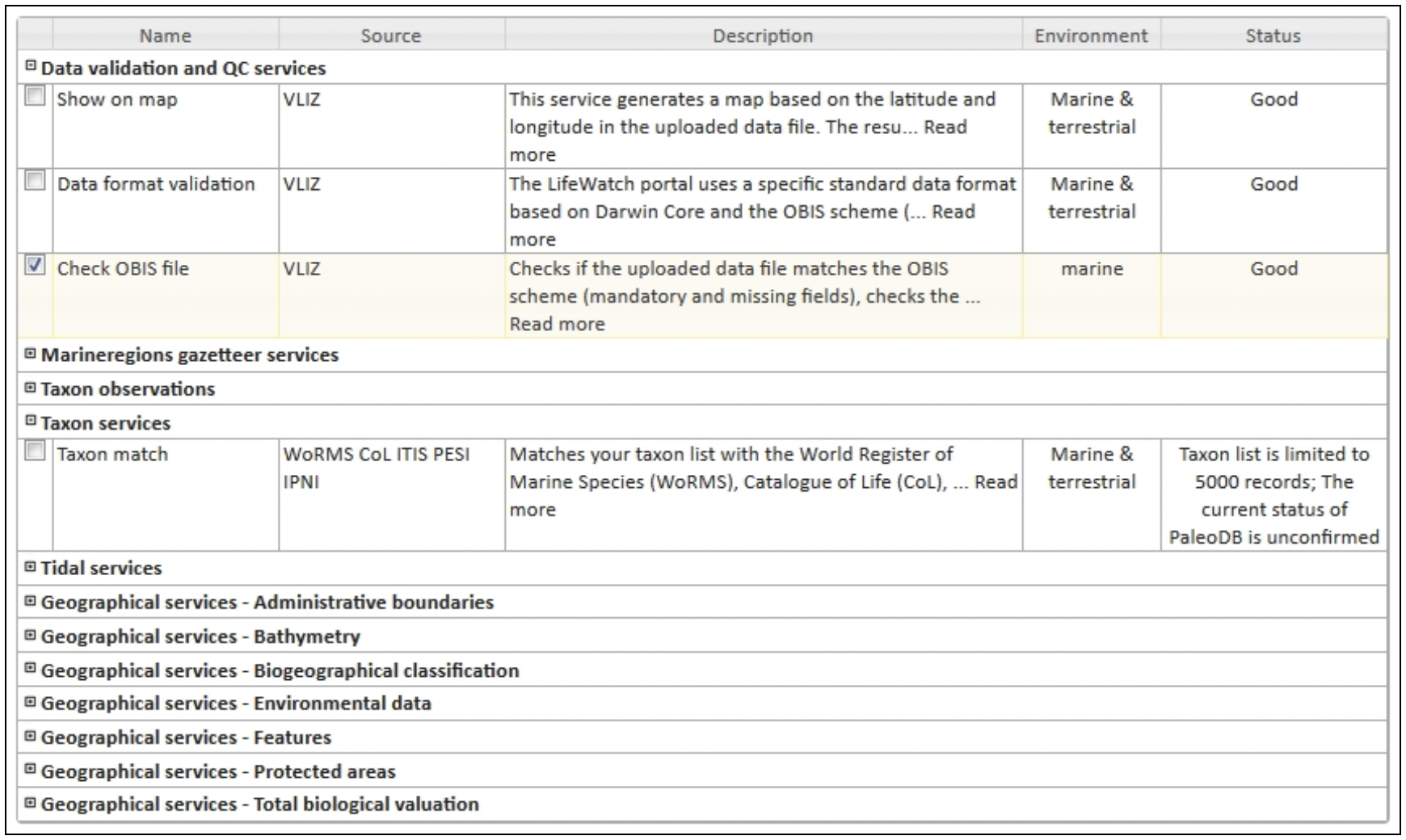
Select the required web services: 'Check OBIS file' (OBIS scheme format).
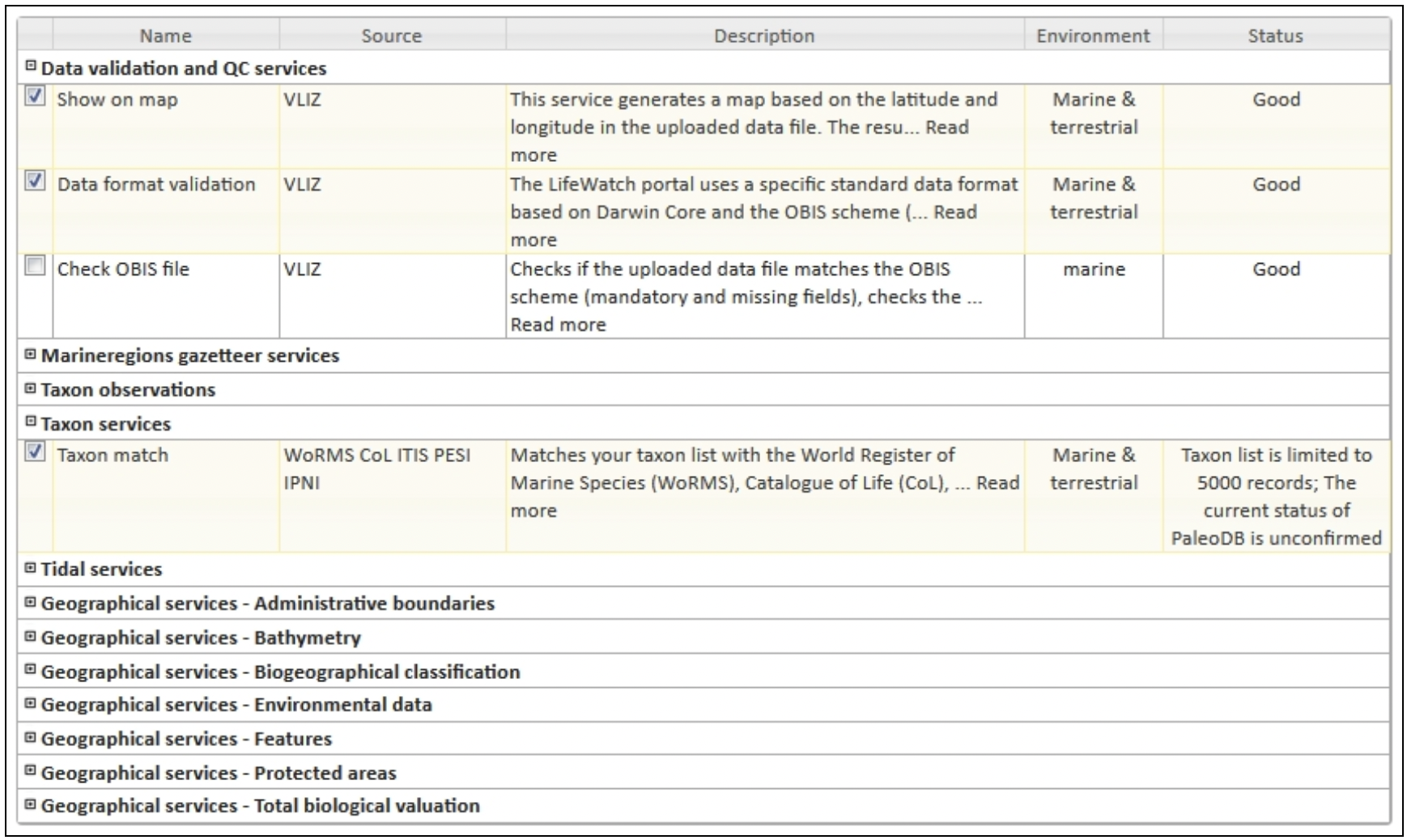
Select the required web services: 'Data format validation', 'Taxon match' and 'Show on Map' (LifeWatch data format).
-
For this use case the order of the selected web services is not relevant.
-
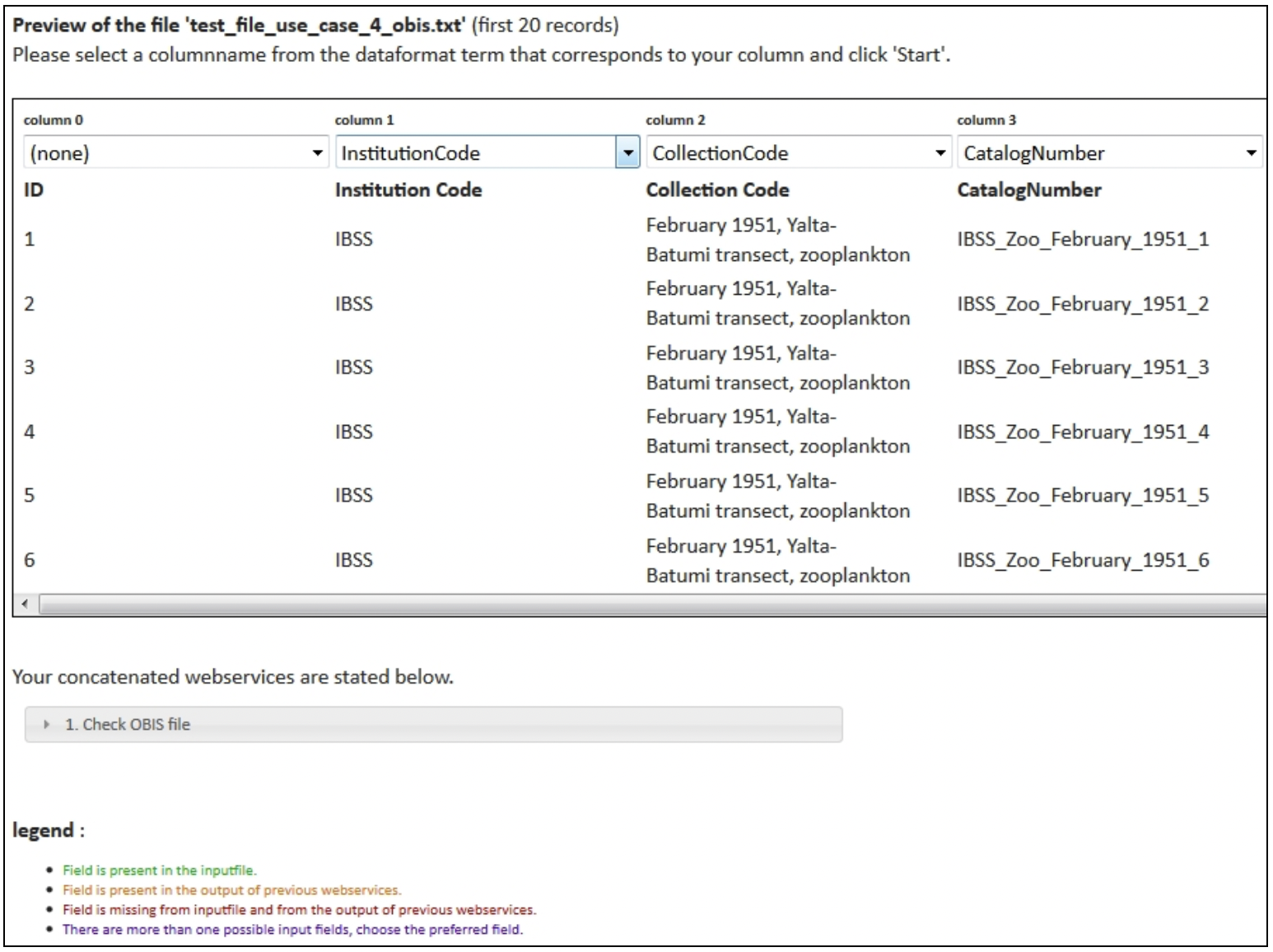
When you click "Next", you are redirected to the preview screen. Make sure that every column name from the uploaded file corresponds with a column name from the pick list.
For web service 'Check OBIS file':
For web services 'Data format validation', 'Show on map' and 'Taxon match WoRMS':
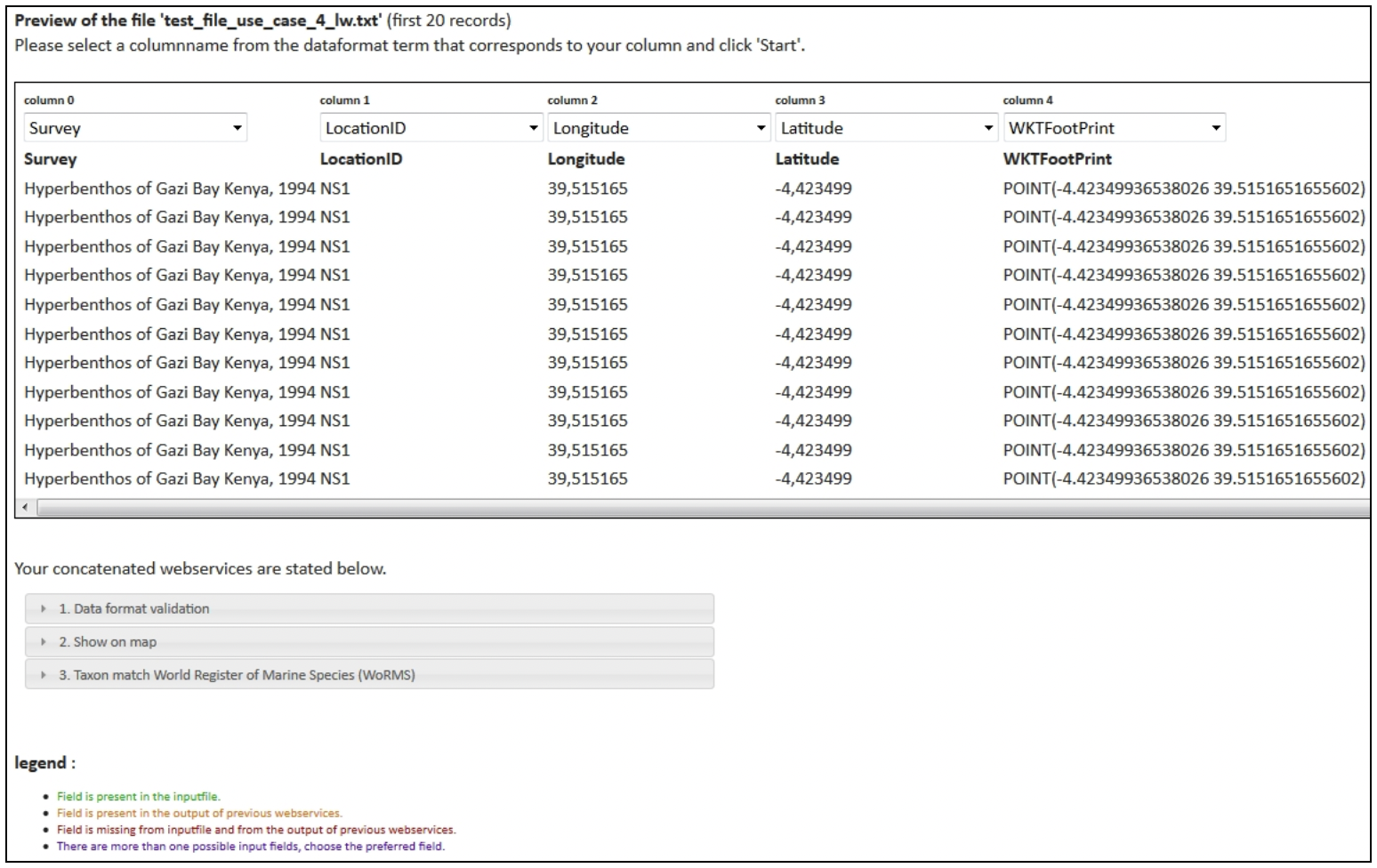
In the lower section of the preview screen, you can find information about duplicate or missing fields per requested web service. Check for every web service if the required fields are present in the input file or will be generated by a previous web service.
-
Click "Start". The following message appears:
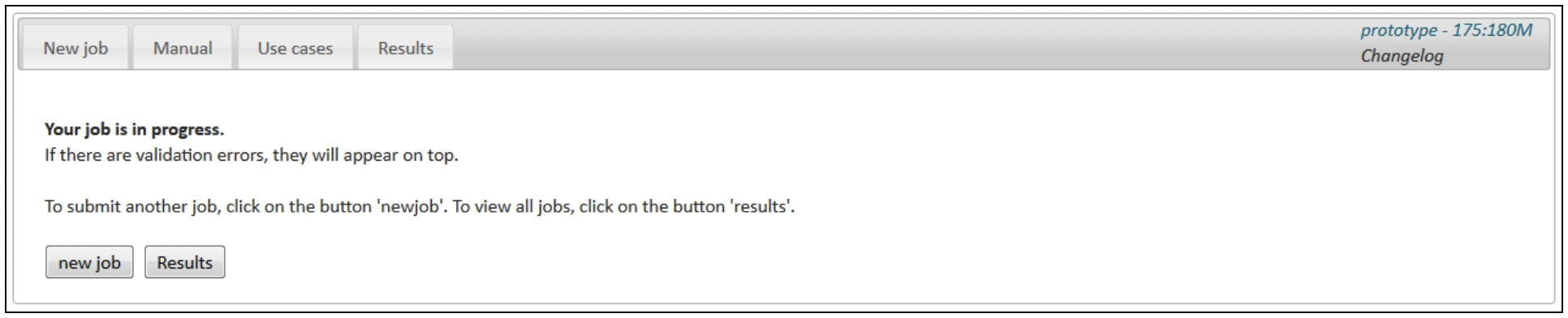
Click on "Results". Your result file will appear at the top of the results table. The result file is also available through the result report.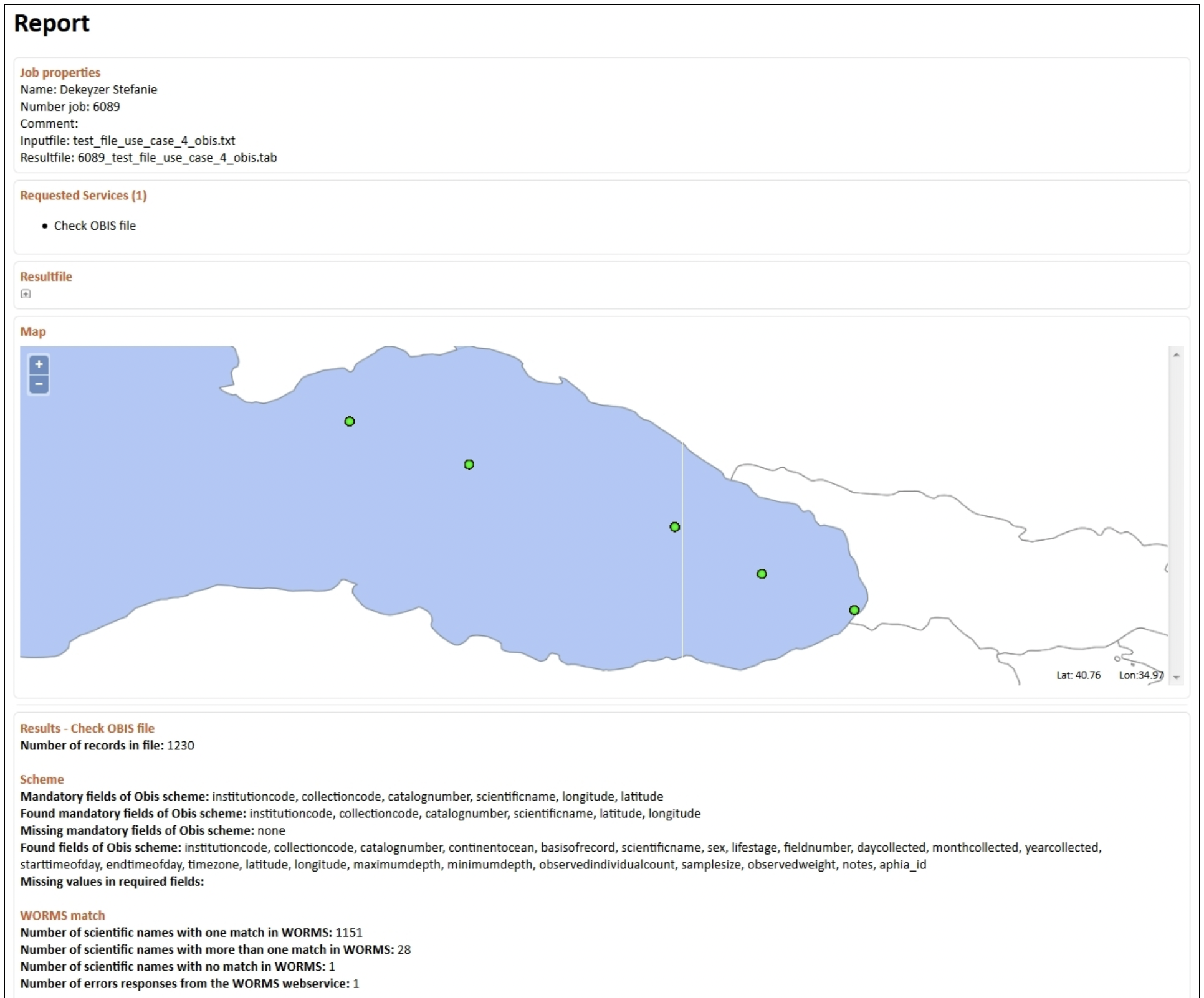
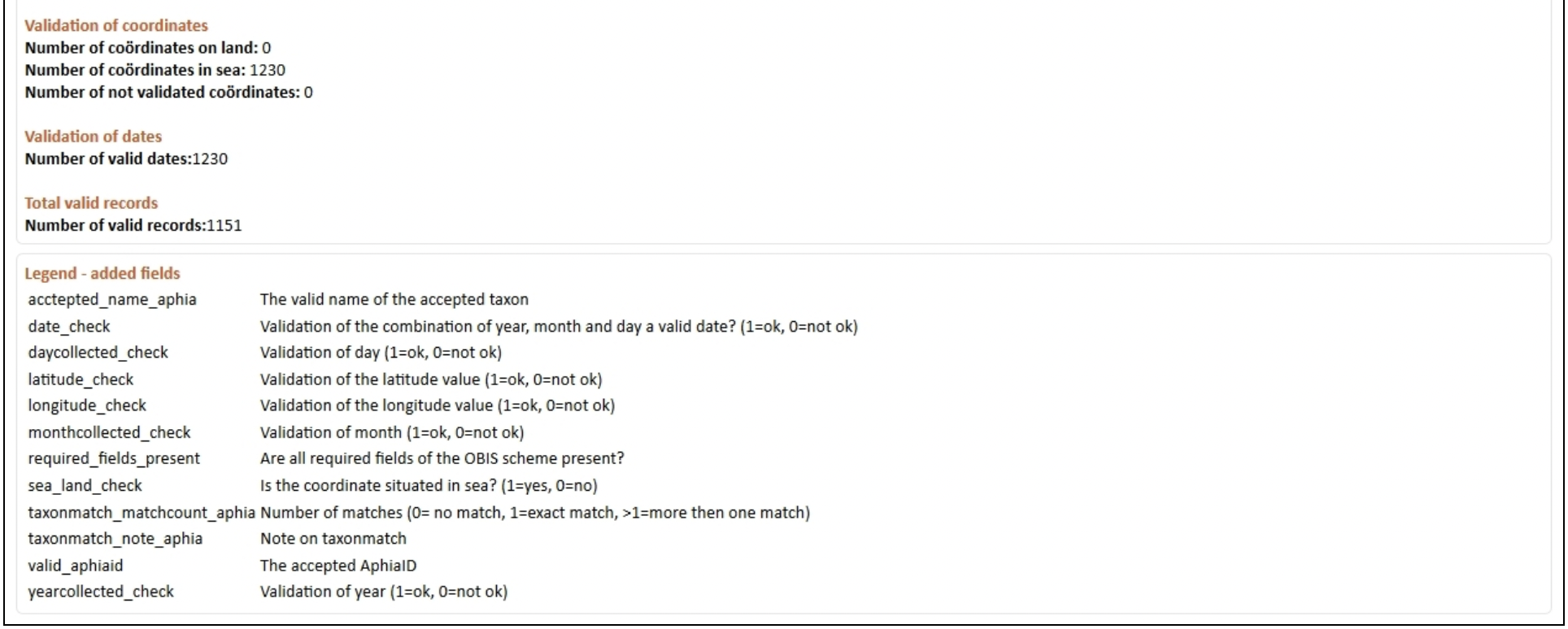
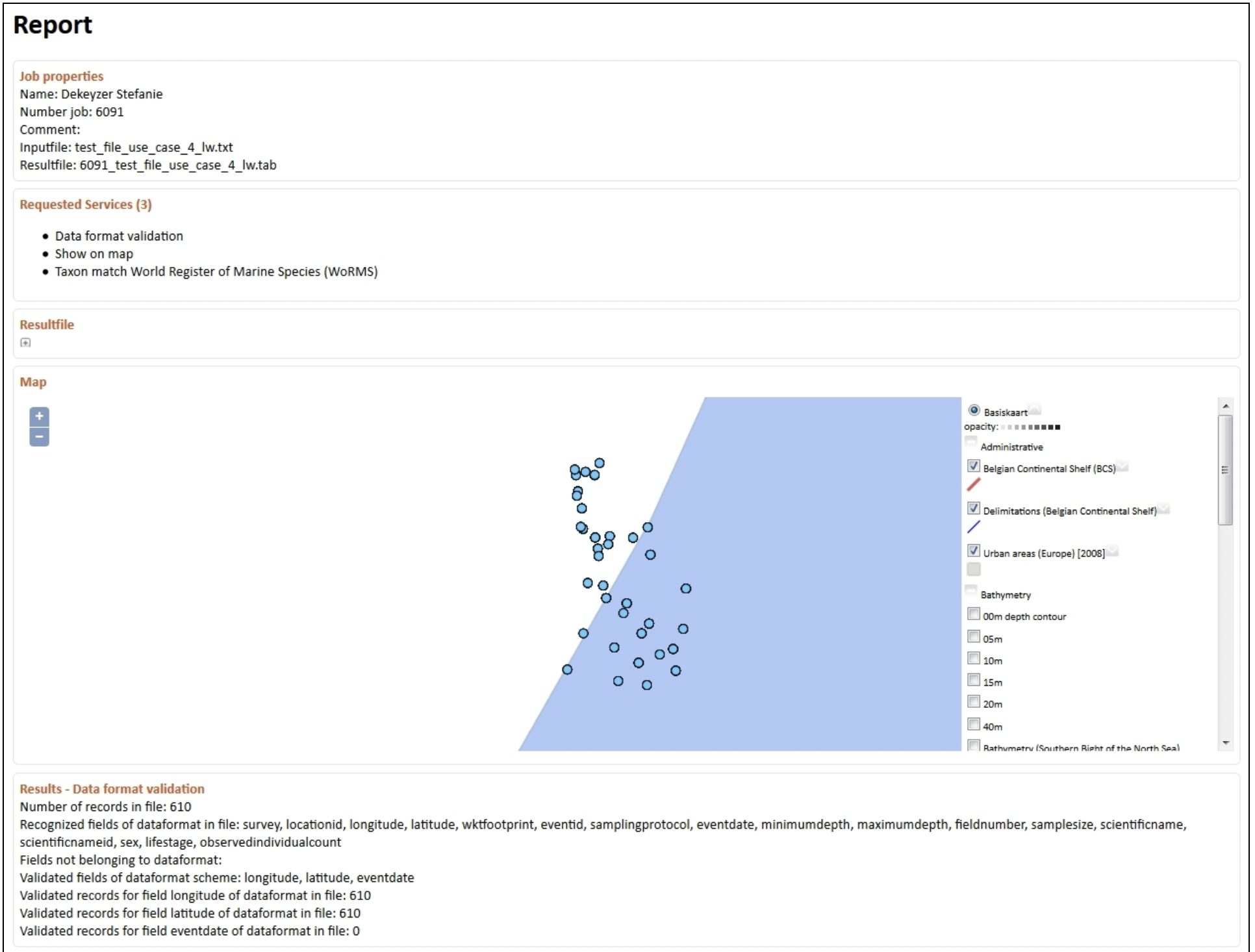
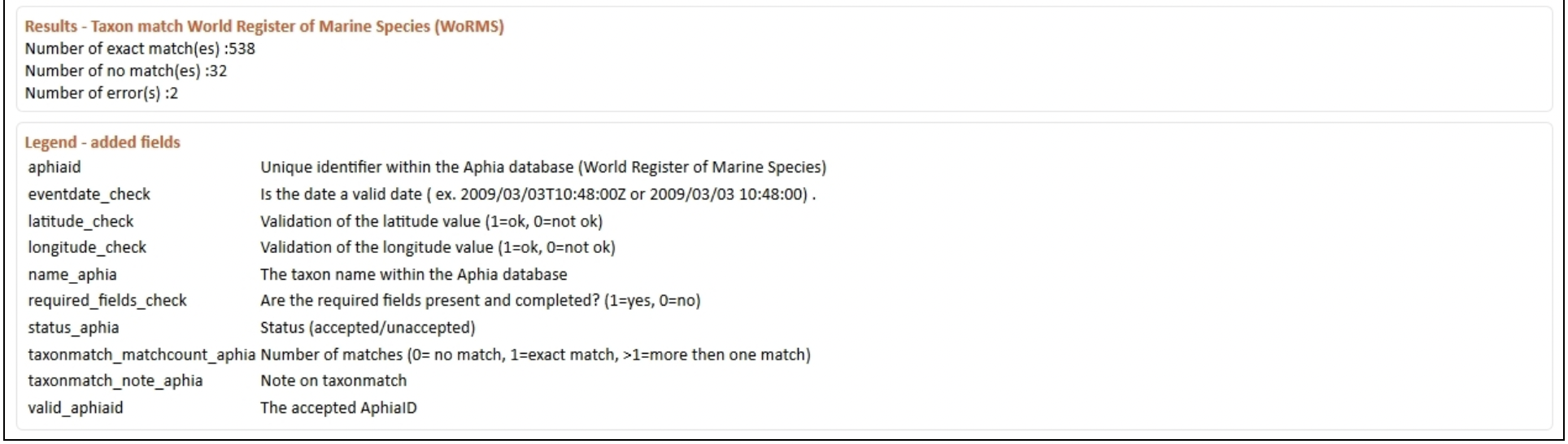
Result report for web services 'Data format validation', 'Show on map' and 'Taxon match WoRMS':
-
The results reports give an overview of the requested web services, the results per web service, any errors that might have occurred during the process, and a legend of the added fields in the result file.
-
The LifeWatch Belgium web services can be used in a concatenated way, where the output of the first web service is the input for the next web service. Check out the other three use cases at the links below.
-
This use case was developed by LifeWatch Belgium.